> For the complete documentation index, see [llms.txt](https://docs.kick.co/llms.txt). Markdown versions of documentation pages are available by appending `.md` to page URLs; this page is available as [Markdown](https://docs.kick.co/workflows/checks-and-deposits.md).
# Checks and Deposits
Record checks and deposits on the date you write them, then clear each one when the bank transaction arrives.
Record a check or deposit in Kick when you write it, before the money leaves or hits your bank. It updates your books on that date, stays outstanding, and clears when you match it to the bank transaction, without counting the payment twice.
Recording checks and deposits is available on Basic, Plus, and Advanced.
***
### How a check moves through Kick
| Stage | What you see |
| ----------- | ------------------------------------------------------------------------------------------------------------------------------------------------------------------------------------------------------- |
| Recorded | The check is on the bank account on the date you entered, coded to the categories you chose. Your reports include it from that date. |
| Outstanding | It stays unmatched until a bank transaction for the same amount arrives. It carries forward from one reconciliation to the next. |
| Cleared | In reconciliation, you match it to the bank transaction that cleared it. The check keeps its date and categories. The bank transaction is absorbed into the check, so the payment is not counted twice. |
| Reconciled | The check is part of a completed reconciliation. You can't delete it until you undo that reconciliation. |
A deposit follows the same stages in the other direction. Reconciliation compares the transactions in Kick with the bank statement.
***
### Ways to add checks and deposits
* **One at a time.** Record a single check or deposit, and split it across categories when you need to. → [Record a check or deposit](https://docs.kick.co/workflows/checks-and-deposits/record-a-check-or-deposit.md)
* **In bulk.** Type or paste up to 50 checks and deposits into a spreadsheet and import them together. Each row is one line. → [Add multiple checks and deposits](https://docs.kick.co/workflows/checks-and-deposits/add-multiple-checks-and-deposits.md)
If a QuickBooks migration brought over checks or deposits that hadn't cleared there, they show up here as outstanding. Clear them in reconciliation the same way as a check you record in Kick.
→ [Migrated checks and deposits](https://docs.kick.co/accountants/bookkeeping-workflows/checks-and-deposits/migrated-checks-and-deposits)
***
### Where to see them
There is no separate Checks page. Recorded checks and deposits sit with the bank account's other transactions. The Check and Deposit Detail report lists them in one place.
#### Transactions
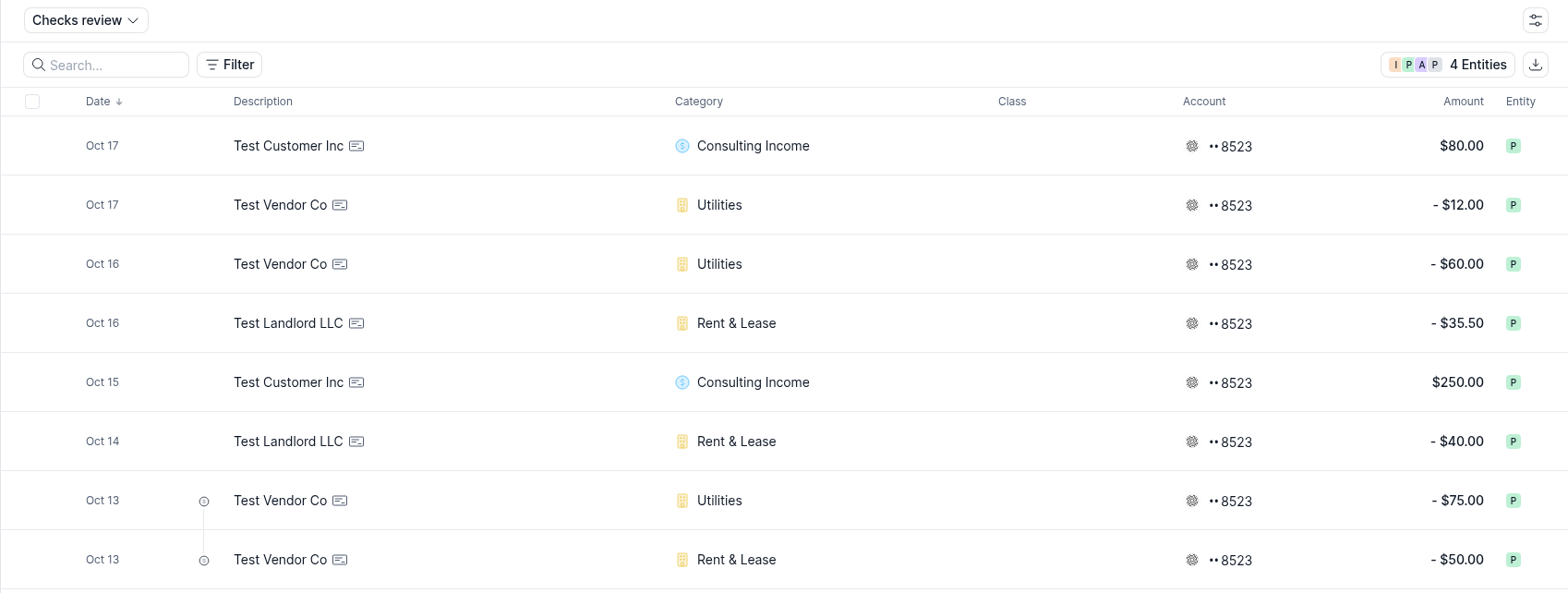
Recorded checks and deposits appear on the Transactions tab with the other transactions on the bank account.
* A check icon marks each one. Hover it to see **Check** or **Deposit**.
* When a check has no description, its bank description is **Check #** followed by the reference number, or **Check** when there is no reference number. Deposits follow the same pattern with **Deposit**.
* A split check shows one row for each line.
The Transactions table has no reference number column. To see check numbers, use the **Reference no.** column on the Check and Deposit Detail report.
To see what's still outstanding, open the view menu at the top left of Transactions (it shows **All Transactions** by default) and select **Checks review**. This view lists every check and deposit that hasn't been cleared in a completed reconciliation.
Use **Filter**, then **Check or deposit**, to show only checks or only deposits.
#### Check and Deposit Detail report
The **Check and Deposit Detail** report lists recorded checks and deposits by bank account over a date range, with their counterparty and whether they are reconciled.
→ [Check and Deposit Detail](https://docs.kick.co/reports/check-and-deposit-detail.md)
***
### Clearing them in reconciliation
When the account has checks or deposits outstanding through the statement end date, reconciliation adds a step, **Clear outstanding checks and deposits**. You match each one to the bank transaction that cleared it, or leave it outstanding for a later reconciliation.
→ [Clear checks and deposits in reconciliation](https://docs.kick.co/workflows/checks-and-deposits/clear-checks-in-reconciliation.md)
***
### FAQs
Can I delete a check?
Yes, while it is still outstanding. Open it on Transactions and click **Delete**. A check or deposit that is part of a completed reconciliation can't be deleted. Undo that reconciliation first.
Does a check need a reference number?
No. **Reference number** is optional, and matching doesn't use it. It can be up to 64 characters, for example the check number.
### Related articles
* [Reconciliation](https://docs.kick.co/workflows/reconciliation.md)
* [Locks](https://docs.kick.co/collaboration/locks.md)
* [Transactions](https://docs.kick.co/workflows/transactions.md)
---
# Agent Instructions
This documentation is published with GitBook. GitBook is the documentation platform designed so that both humans and AI agents can read, navigate, and reason over technical content effectively. Learn more at gitbook.com.
## Querying This Documentation
If you need additional information that is not directly available in this page, you can query the documentation by asking a question.
Perform an HTTP GET request on the following URL with the `ask` and `goal` query parameters:
```
GET https://docs.kick.co/workflows/checks-and-deposits.md?ask=&goal=
```
`ask` is the immediate question: it should be specific, self-contained, and written in natural language.
`goal` is what the user is ultimately trying to achieve, the reason they need the answer. Sharing it helps GitBook give you a better, more relevant answer. A goal is most helpful when it describes the outcome the user wants rather than restating the question. For example, with `ask=how do I create an API token`, a goal like `automate deployments from our CI pipeline` lets GitBook tailor the answer to that use case.
The response will contain a direct answer to the question and relevant excerpts and sources from the documentation.
Use this mechanism when the answer is not explicitly present in the current page, you need clarification or additional context, or you want to retrieve related documentation sections.