# Rules
The best way for Kick to learn from any transaction changes you make is to create a Rule.
Rules ensure that Kick will accurately update future transactions for you, further personalizing your bookkeeping experience and saving you time.
***
### Rule Types
Kick has four standard Rule Types that run at different times and for different purposes:
1. **Transactions, Transfer, and Split Rules** run when transactions are first synced or a new Rule is created
2. **Accounting Rules** run every time a transaction is updated or recategorized
***
#### Transactions Rules
Transactions Rules run when new transactions sync into Kick or when a new Transactions Rule is created. They’re ideal for setting simple, proactive Rules to categorize transactions or move them to a different entity - including your Personal entity.
Transactions Rules currently support the following actions:
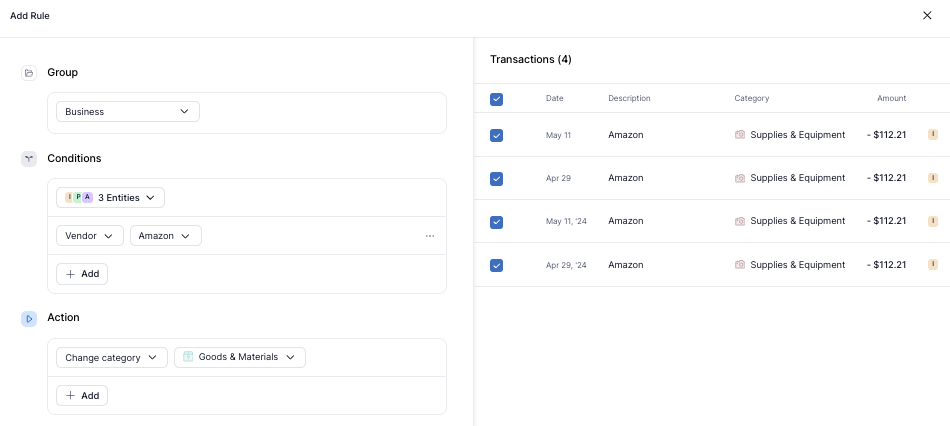
* **Change Category** – Automatically apply a specific category when certain conditions are met
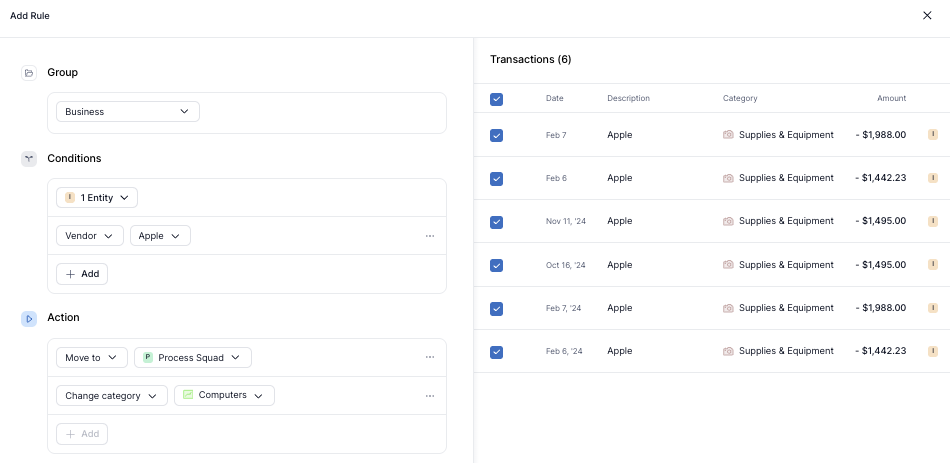
* **Move to a different Entity** – Reassign transactions to a different Business entity or move between Business and Personal
* **Assign Classes** – After creating custom Classes (available on Plus), assign them to transactions
* **Assign Vendors or Customers** – Assign a Vendor or Customer to each transaction based on the conditions you set, automating Revenue and Expense insights
* **Add Memos** – Add additional context to transactions for your own records or for your CPA come tax time
Examples:
* Recategorize all **Amazon** transactions from *Supplies & Equipment* to *Goods & Materials*
* Move all **Apple** transactions from one Business entity to another and categorize as *Computers*
Rules are especially helpful if you’re using **Custom Categories**, since these categories are not automatically assigned by Kick’s categorization model.
Creating a Rule ensures that your Custom Categories are automatically applied to the right transactions going forward.
***
#### Accounting Rules
Accounting Rules run every time a transaction is updated or recategorized.
These Rules are ideal for ensuring your transactions are consistently mapped to the correct account in your **Chart of Accounts (CoA)**.
Examples:
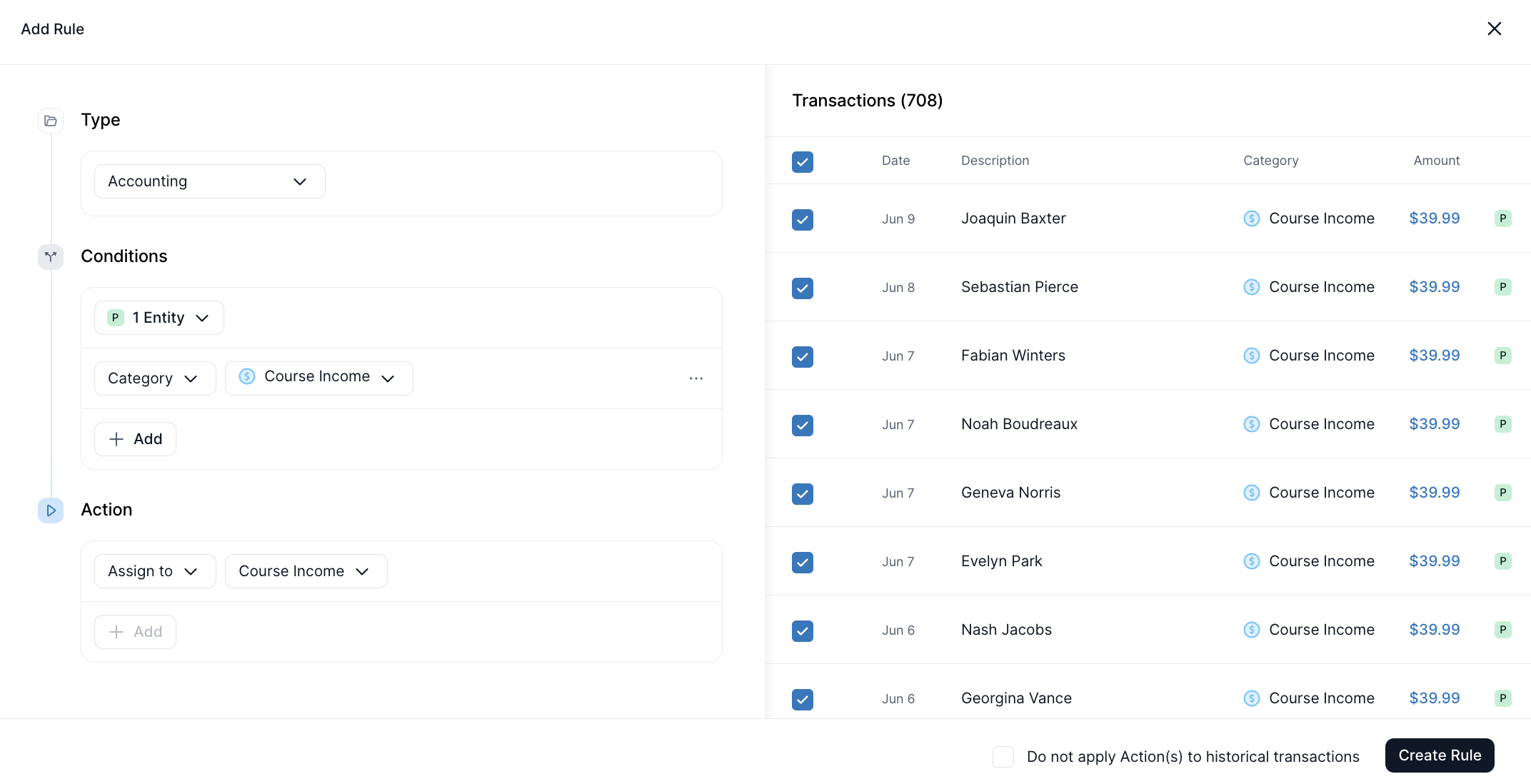
* Map custom category *Course Income* to custom Profit & Loss account *Course Income*
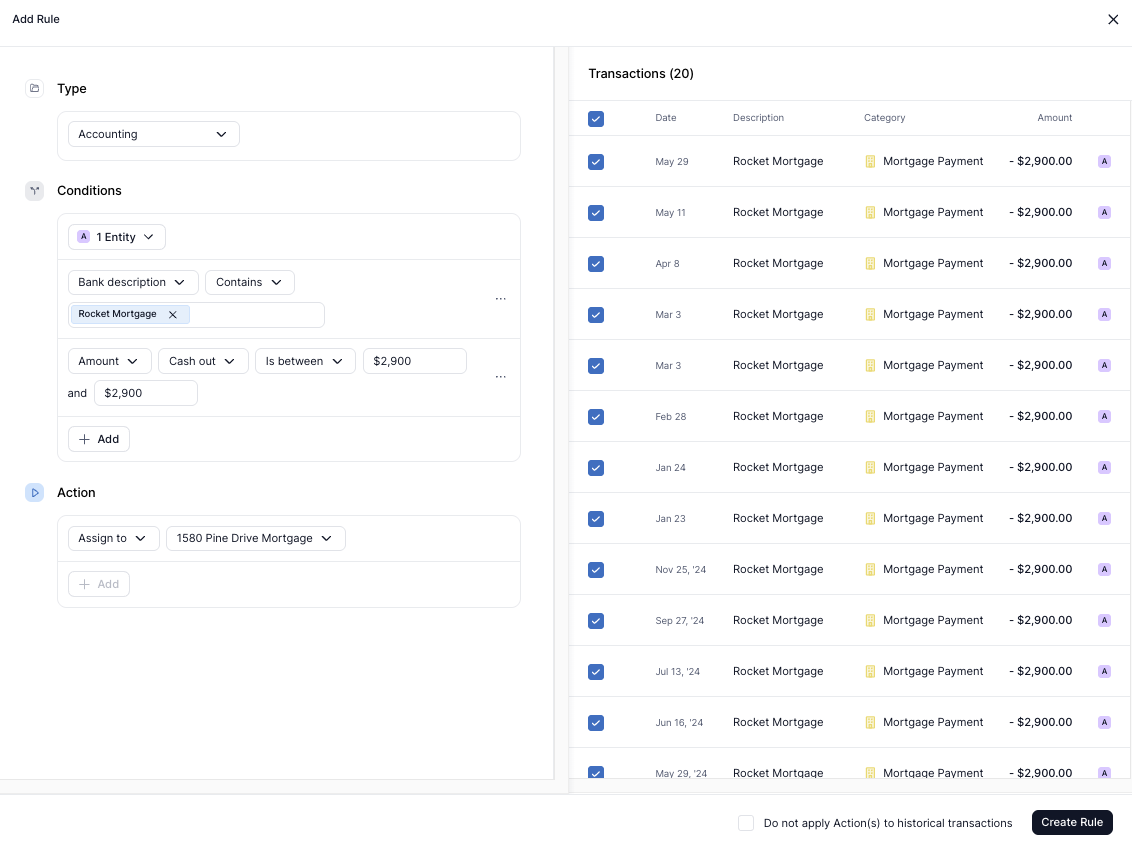
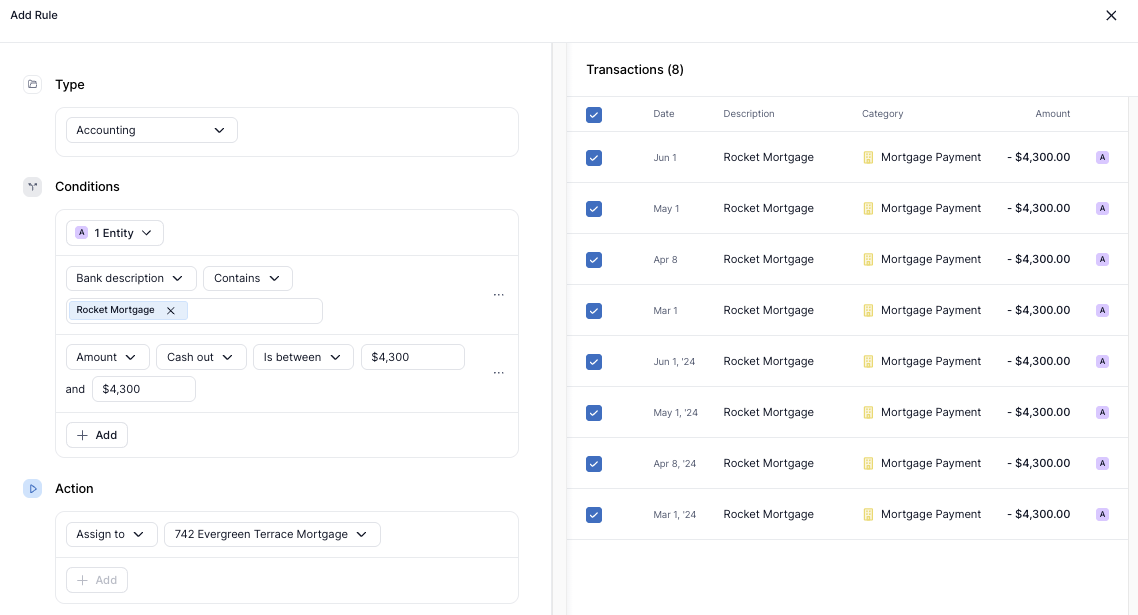
* Map transactions with Bank Description “Rocket Mortgage” and Amount $4,300 to a custom Balance Sheet account *742 Evergreen Terrace Mortgage* and transactions with Bank Description “Rocket Mortgage” and Amount $2,900 to a custom Balance Sheet account *1580 Pine Drive Mortgage* (accomplished via two separate Rules)
#### Kick Rules
Kick Rules apply to transactions that aren’t affected by any custom Accounting Rules. They serve as the default mapping between your transaction categories and the Chart of Accounts. If no Accounting Rule is triggered, Kick will use these built-in Rules to assign transactions to the appropriate accounts.
These Rules cannot be edited or deleted, but they’re easy to override by creating a custom Accounting Rule. Accounting Rules always take priority - Kick Rules will never override them.
***
#### **Transfer Rules**
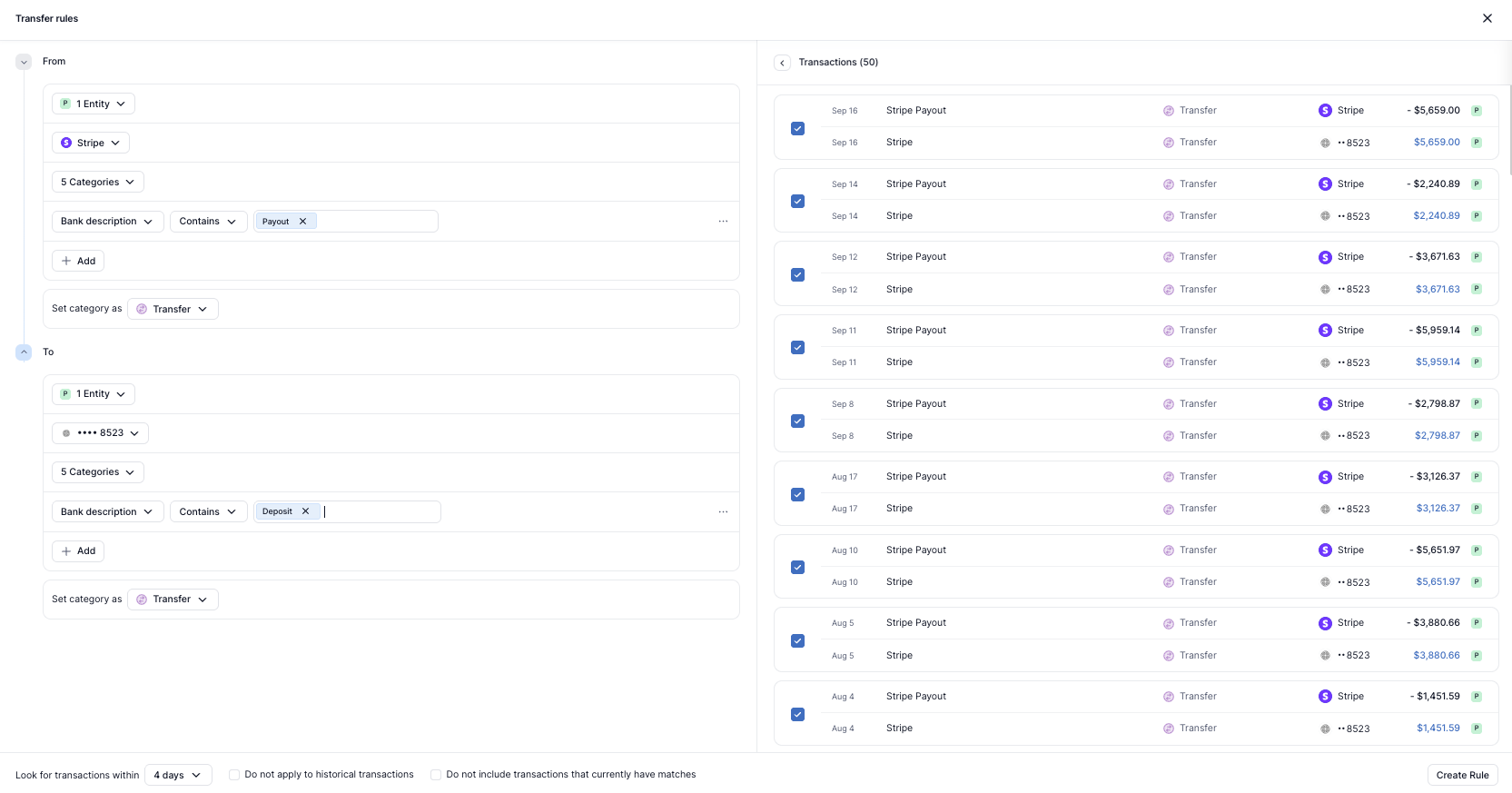
Transfer Rules run automatically when new transactions sync into Kick or when you create a new rule. They let you set custom conditions to match transfers between accounts, ensuring both sides of the transaction are properly linked.
Transfers—such as bank-to-bank, payment processor-to-bank, or bank-to-credit card—should always be matched in Kick to keep your books accurate. If a transaction is categorized as **Transfer** or **Credit Card Payment** but no match is found, either:
* The other account involved in the transfer may need to be connected to Kick, or
* The transaction category may need to be updated.
Example:
* Match *Stripe Payouts* from Stripe to *Stripe Deposits* into Mercury 8523
***
#### Split Rules
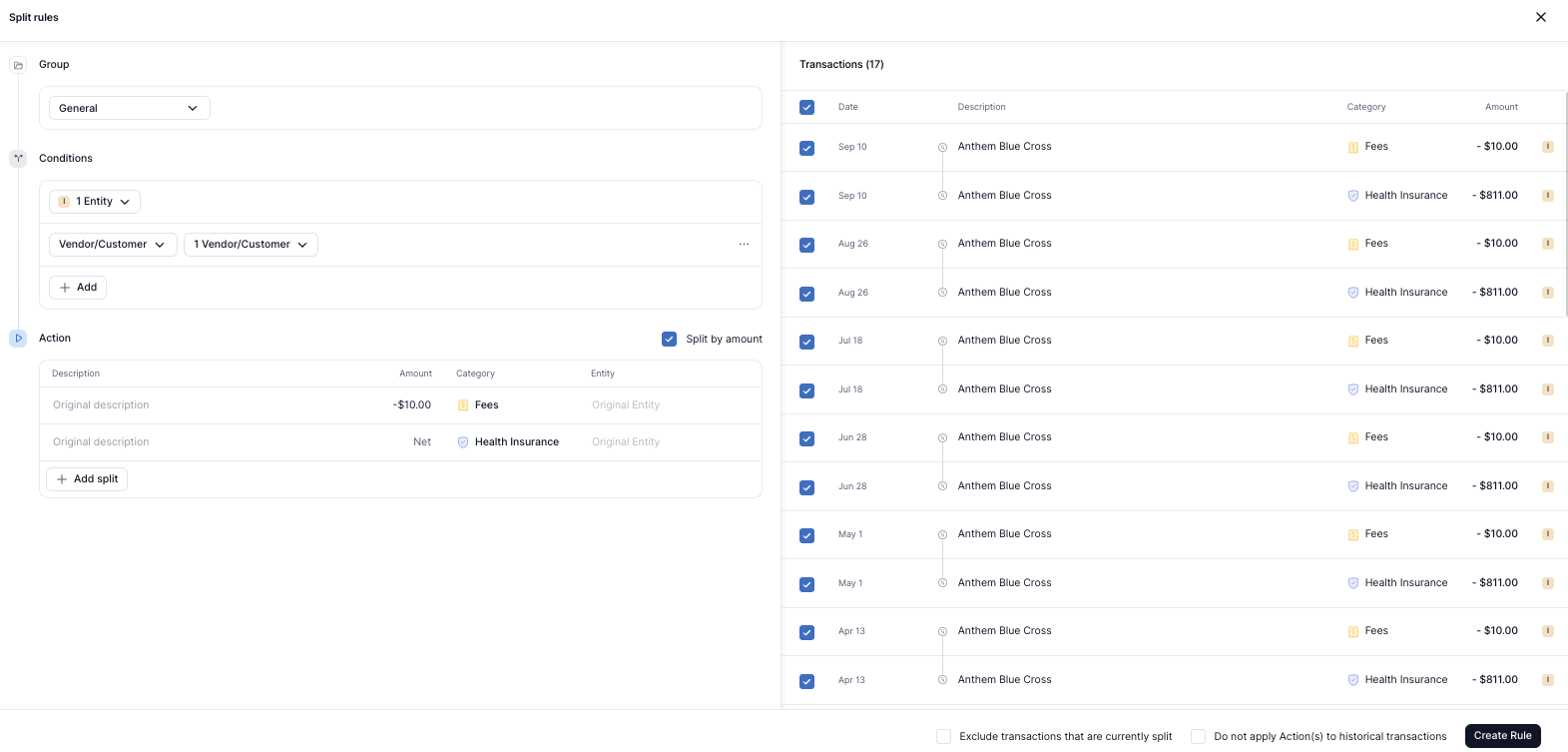
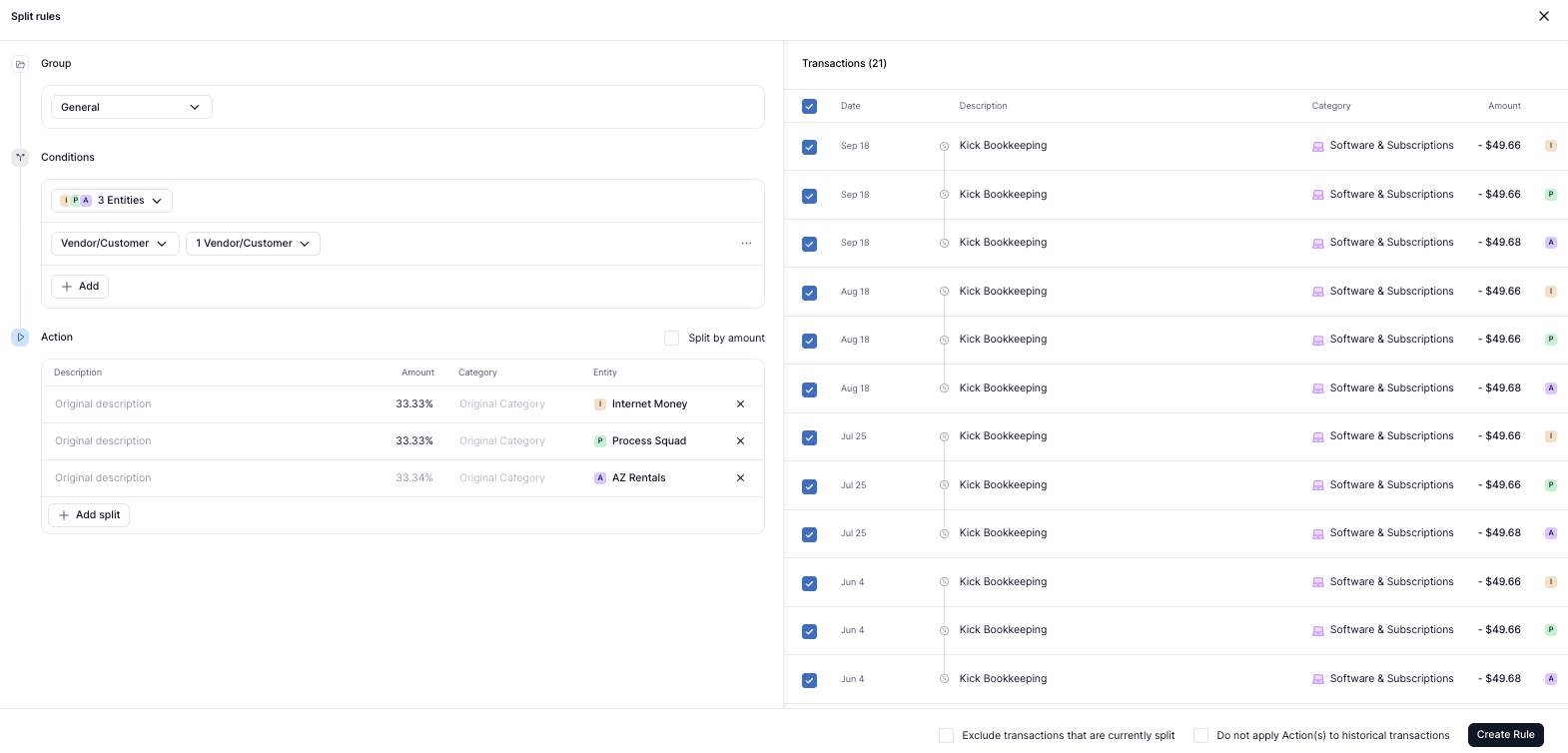
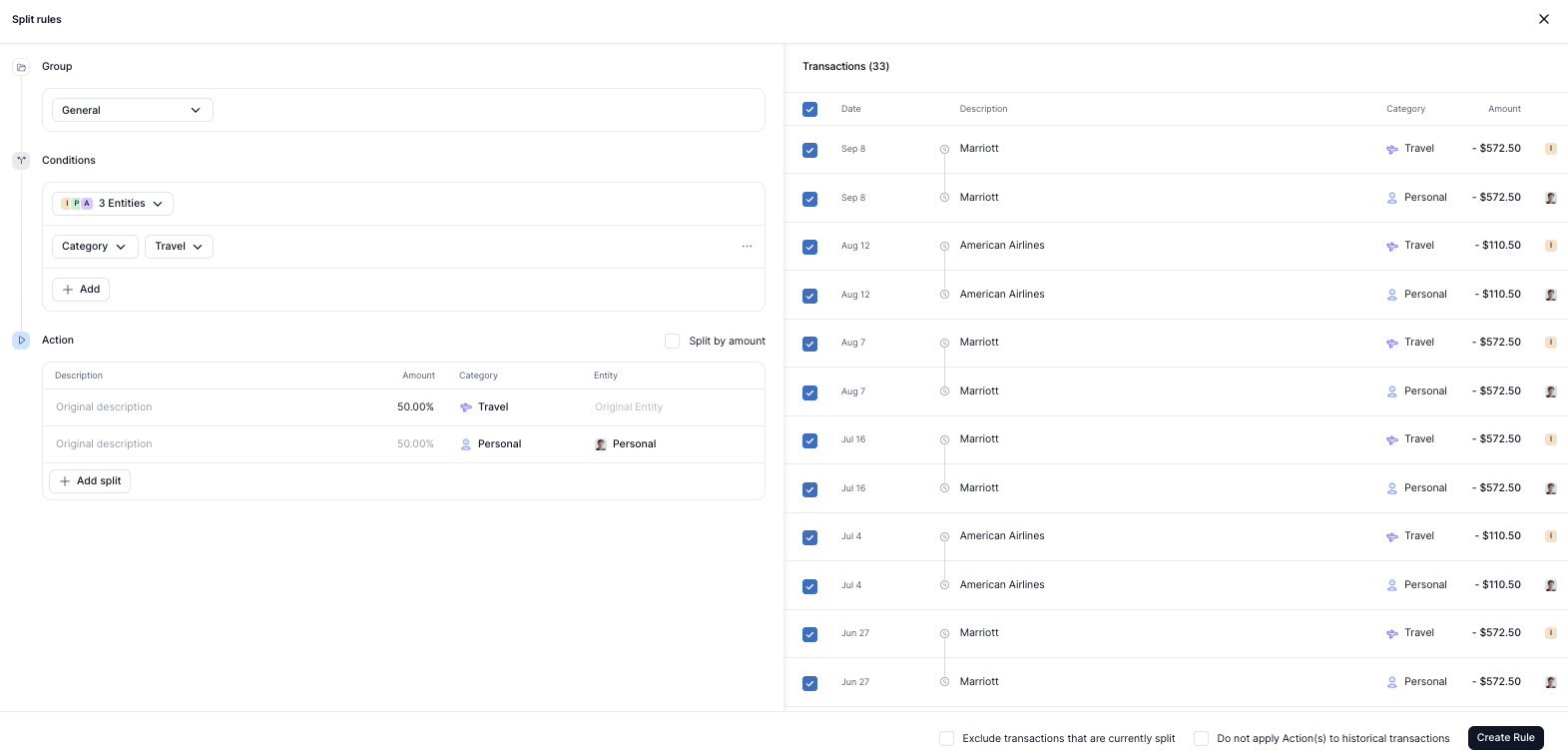
Split Rules run automatically when new transactions sync into Kick or when you create a new rule. They let you set custom conditions to split transactions across categories or entities based on percentage or amount.
Examples:
* Split *Anthem Blue Cross* transactions between *Health Insurance* and *Fees* by Amount
* Split my *Kick Bookkeeping* transactions evenly across my 3 business entities by percentage
* Move 50% of my *Travel* expenses to *Personal*
### Rule Groups
Most accounting rule engines rely on a long, disorganized list of Rules that are hard to manage at scale. Kick breaks this pattern with **Rule Groups**—a system that makes it simple to organize and prioritize your Rules with full transparency.
To create a Rule Group, click **Add rule group** in the top right corner of the Rules tab. To rename an existing group, including the default **General Rule Group**, click the three dots next to the group name and select **Edit**.
To change priority, just drag and drop your Rule Groups into the order you want—so you always know exactly how Rules will be applied.
### Editing Rules
#### Editing a Rule
To edit a Rule, hover over it and click the three dots (`⋯`) at the far right of the row. From the dropdown menu, select **Edit**. This opens the Rule details so you can update the Conditions or Actions.
#### Disabling a Rule
To temporarily stop a Rule from running, click the three dots (`⋯`) and select **Disable**. Disabled Rules remain in your list but won’t apply to future transactions until re-enabled.
#### Deleting a Rule
To permanently remove a Rule, use the same `⋯` menu and choose **Delete**. This action cannot be undone, so make sure you no longer need the Rule before deleting it.
#### Rule Prioritization
Rules are applied in order from top to bottom. You can drag and drop Rules to change their priority.
#### Conflicting Rules
If two or more Rules could apply to the same transaction, only the first matching Rule (based on priority) will run. Reorder or edit your Rules if one is unintentionally blocking another from applying.
---
# Agent Instructions: Querying This Documentation
If you need additional information that is not directly available in this page, you can query the documentation dynamically by asking a question.
Perform an HTTP GET request on the current page URL with the `ask` query parameter:
```
GET https://docs.kick.co/bookkeeping-workflows/rules.md?ask=
```
The question should be specific, self-contained, and written in natural language.
The response will contain a direct answer to the question and relevant excerpts and sources from the documentation.
Use this mechanism when the answer is not explicitly present in the current page, you need clarification or additional context, or you want to retrieve related documentation sections.