> For the complete documentation index, see [llms.txt](https://docs.kick.co/llms.txt). Markdown versions of documentation pages are available by appending `.md` to page URLs; this page is available as [Markdown](https://docs.kick.co/ai/mcp/connectors/connect-microsoft-copilot.md).
# Connect Microsoft Copilot
Build custom AI agents that can read your clients' Kick data, generate reports, and execute approved bookkeeping changes, all through natural conversation in your organization's Copilot
#### Copilot Studio vs. Consumer Copilot
**This guide is for Copilot Studio only.** To give your team Kick access through a conversational AI interface, you must:
1. Build an agent in Copilot Studio (this guide)
2. Publish it to your organization
3. Team members then use your custom agent
***
#### What Is Copilot Studio?
Microsoft Copilot Studio is a low-code platform for building custom AI agents (copilots) for your organization. Unlike consumer-facing Microsoft Copilot in Edge or Windows, Copilot Studio lets you create specialized agents that connect to your firm's data and tools.
**Use Copilot Studio to:**
* Build a custom "Kick Accounting Agent" for your firm
* Give team members conversational access to client financial data
* Automate bookkeeping workflows through natural language
* Deploy firm-specific AI assistants that understand your processes
This guide shows you how to connect your Copilot Studio agent to Kick's MCP server so your custom copilot can access accounting data.
***
#### What You'll Need
* A Microsoft Copilot Studio license (included in certain Microsoft 365 plans)
* Access to create and publish agents in your organization
* A Kick account with access to at least one workspace
{% hint style="info" %}
**Tip**: Log in to your Kick account in your browser before starting. This makes the authorization step faster.
{% endhint %}
***
#### Connect Kick MCP to Your Agent
**Step 1: Create or Open Your Agent**
1. Go to [Copilot Studio](https://copilotstudio.microsoft.com)
2. Create a new agent or open an existing one
3. In the agent editor, go to **Settings**
**Step 2: Add the Kick MCP Server**
1. In Settings, navigate to **MCP servers** or **Connectors**
2. Click **Add MCP server**
3. Complete the connection form:
* **Name**: `Kick`
* **MCP server URL**: `https://use.kick.co/mcp`
* **Transport**: Choose **Remote MCP** or **Streamable HTTP** (depending on available options)
* **Authentication**: Select **OAuth** if available, otherwise **API Key** or **Bearer token**
4. Click **Add** or **Save**
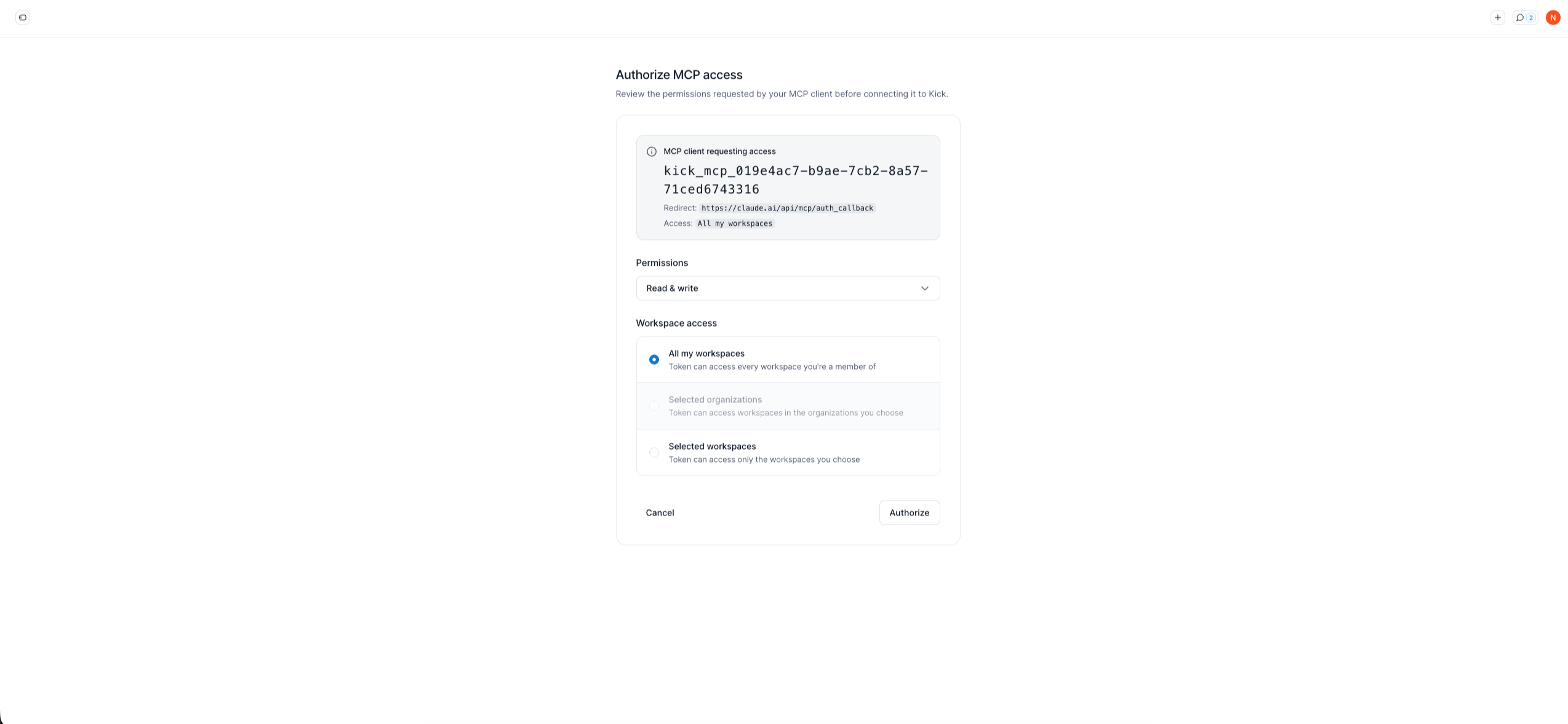
**Step 3: Authorize the Connection**
**If using OAuth:**
1. A browser window will open to Kick's authorization page
2. Sign in to your Kick account if prompted
3. Choose your permissions:
* **Read & write** — Full access (write operations require approval in the agent)
* **Read-only** — View-only access
4. Choose workspace access:
* **All my workspaces** — Access all current and future workspaces
* **Selected organizations** — Choose specific organizations
* **Selected workspaces** — Choose specific workspaces
5. Click **Authorize**
**If using Bearer Token:**
1. Generate a personal access token in Kick (Settings → API)
2. Copy the token (starts with `kick_pat_`)
3. Paste it in the authentication field in Copilot Studio
4. Save the configuration
**Step 4: Configure Agent Tools**
After adding the Kick MCP server:
1. Go to your agent's **Actions** or **Tools** settings
2. Enable the Kick tools you want your agent to access
3. Configure tool permissions:
* **Read-only tools** — Always available
* **Write tools** — May require confirmation prompts
**Step 5: Test Your Agent**
1. Open the **Test your agent** panel
2. Ask your agent:
```
List the Kick tools you can use and confirm the active workspace.
```
The agent should respond with available tools (like `transactions_query`, `reports_query`, `context_browse`) and your active workspace name.
***
#### Publish Your Agent
Once you've configured and tested the Kick connection:
1. Click **Publish** in the agent editor
2. Choose where to publish:
* **Your organization** — Available to all members
* **Specific teams or groups** — Limited distribution
* **External** — Share outside your organization (requires admin approval)
3. Confirm publication
Team members can now use your custom agent to access Kick data through conversation.
***
#### Example Agent Prompts
Once your agent is connected to Kick, team members can ask it:
* "Show me all transactions over $5,000 from last quarter for \[client name]"
* "Generate a profit and loss report for January 2026"
* "What are the top 5 expenses for \[client name] this year?"
* "List all asset accounts and their current balances"
* "Create a rule to categorize all Amazon transactions as Office Supplies"
* "Compare Q1 and Q2 revenue across all entities"
The agent will pull live data from Kick and, for write operations, ask for confirmation before making changes.
***
#### Agent Configuration Tips
**Set Default Workspace**
Configure your agent to default to a specific workspace:
1. In agent settings, add a system prompt
2. Include: "Always use the \[workspace name] workspace unless the user specifies otherwise"
**Require Approval for Write Operations**
Ensure write operations require explicit user confirmation:
1. Go to agent **Actions** settings
2. For each write tool (like `transactions_act`, `rules_act`), enable **Requires confirmation**
3. Configure confirmation prompts for clarity
**Add Context About Your Firm**
Give your agent context about your firm's processes:
1. Add a knowledge source with your firm's accounting policies
2. Include client naming conventions
3. Document common workflows
This helps the agent provide more relevant, firm-specific responses.
***
#### Troubleshooting
**MCP Server Won't Connect**
The server configuration didn't load successfully.
1. Verify the MCP server URL is exactly: `https://use.kick.co/mcp`
2. Check that authentication is configured correctly
3. Try removing and re-adding the server
4. Check Copilot Studio service status
**Authorization Failed (OAuth)**
The authorization didn't complete successfully.
1. Make sure you're logged in to your Kick account
2. Complete the full authorization flow
3. Click **Authorize** on the Kick authorization page
4. Try disconnecting and reconnecting the server
**Invalid Token (Bearer Token)**
The personal access token isn't working.
1. Verify the token was copied correctly (no extra spaces)
2. Check that the token hasn't expired in Kick settings
3. Generate a new token if needed
4. Make sure the token format starts with `kick_pat_`
**Agent Can't Access Kick Tools**
Tools aren't appearing in the agent's available actions.
1. Go to agent **Actions** or **Tools** settings
2. Verify Kick tools are enabled
3. Republish the agent after enabling tools
4. Test in the agent editor before publishing
**Wrong Workspace Showing**
Your Kick account has access to multiple workspaces. Configure the agent to specify:
1. Add a system prompt: "Use the \[workspace name] workspace"
2. Or tell the agent in conversation: "Switch to \[workspace name] workspace"
***
#### Security and Permissions
**Data Access**
* **Workspace-level**: The agent can only access Kick workspaces the authorizing user has permission to view
* **Tool-level**: Enable only the tools your team needs
* **User-level**: Team members can only use the agent if they have access to it
**Confirmation Requirements**
* **Read operations**: Execute automatically
* **Write operations**: Require user confirmation (configurable per tool)
* **Bulk operations**: Always require explicit approval
**Token Management**
* **OAuth tokens**: Automatically refresh, managed by Microsoft and Kick
* **Bearer tokens**: Must be manually rotated according to your firm's security policy
* **Revocation**: Disconnect Kick in Copilot Studio or revoke tokens in Kick settings
***
#### Data Privacy
* **Your data stays in Kick**: The agent requests data through the MCP connection but doesn't store your Kick data permanently
* **Microsoft's data handling**: Copilot Studio processes queries according to Microsoft's enterprise data policies
* **You control access**: Disconnect Kick or revoke tokens at any time
* **Audit trail**: Both Kick and Copilot Studio maintain logs of data access and changes
***
#### Next Steps
Now that you're connected:
1. Try a sample query: "List my workspaces" or "What tools can you use?"
2. Explore reports by asking your Copilot Studio agent to generate financial reports for your clients
3. Check out the [Kick MCP Use Case Library](/ai/mcp/mcp-use-case-library.md) for advanced use cases
***
#### Need More Help?
* **Kick Support**: Visit the [Kick Help Center](https://docs.kick.co) or contact
* **Copilot Studio Documentation**: Visit [Microsoft Learn](https://learn.microsoft.com/en-us/microsoft-copilot-studio/)
* **MCP Server Setup**: See [Microsoft's MCP guide](https://learn.microsoft.com/en-us/microsoft-copilot-studio/mcp-add-existing-server-to-agent)
---
# Agent Instructions
This documentation is published with GitBook. GitBook is the documentation platform designed so that both humans and AI agents can read, navigate, and reason over technical content effectively. Learn more at gitbook.com.
## Querying This Documentation
If you need additional information that is not directly available in this page, you can query the documentation dynamically by asking a question.
Perform an HTTP GET request on the current page URL with the `ask` query parameter, and the optional `goal` query parameter:
```
GET https://docs.kick.co/ai/mcp/connectors/connect-microsoft-copilot.md?ask=&goal=
```
`ask` is the immediate question: it should be specific, self-contained, and written in natural language.
`goal` is optional and describes the broader end goal you are ultimately trying to accomplish on behalf of the user. GitBook uses it to tailor the answer towards what is most useful for that goal.
The response will contain a direct answer to the question and relevant excerpts and sources from the documentation.
Use this mechanism when the answer is not explicitly present in the current page, you need clarification or additional context, or you want to retrieve related documentation sections.