> For the complete documentation index, see [llms.txt](https://docs.kick.co/llms.txt). Markdown versions of documentation pages are available by appending `.md` to page URLs; this page is available as [Markdown](https://docs.kick.co/ai/mcp/connectors/connect-claude.md).
# Connect Claude
Add Kick from Claude's connector directory for deep context on your clients' financials. Query transactions, generate reports, create rules, and execute bookkeeping changes in one conversation
Kick MCP integration lets Claude directly access your accounting data. Instead of copying and pasting client information, Claude can request the data it needs and return structured results.
Kick is listed in [Claude's connector directory](https://claude.ai/directory/connectors/kick-co), so you add it by searching for Kick inside Claude.
#### What You'll Need
* A Claude account on any plan. Directory connectors, including Kick, are available on Free, Pro, Max, Team, and Enterprise.
* A Kick account with access to at least one workspace
{% hint style="info" %}
**Tip**: Log in to your Kick account in your browser before starting. This makes the authorization step faster.
{% endhint %}
***
#### Add Kick from the Connector Directory
These steps cover individual accounts on Free, Pro, and Max. On Team and Enterprise plans, an Owner or admin adds Kick for the organization first: expand **For Claude Team and Enterprise Users** below.
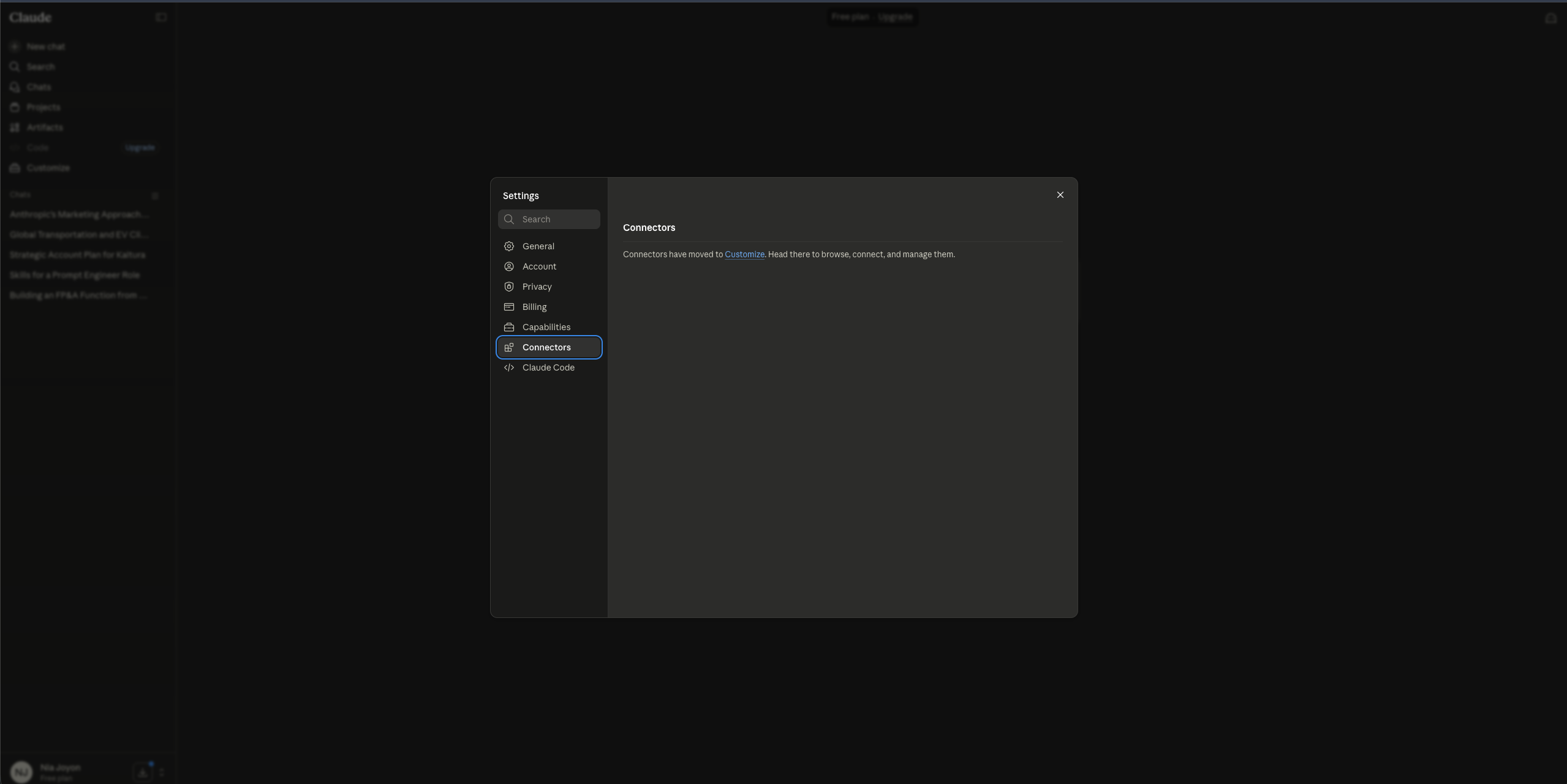
**Step 1: Open the Connectors Page**
1. Log in to [Claude.ai Connectors](https://claude.ai/new#settings/connectors) or go to **Settings** in the left sidebar > **Connectors**
**Step 2: Find Kick in the Directory**
1. Click the **+** button in the top right
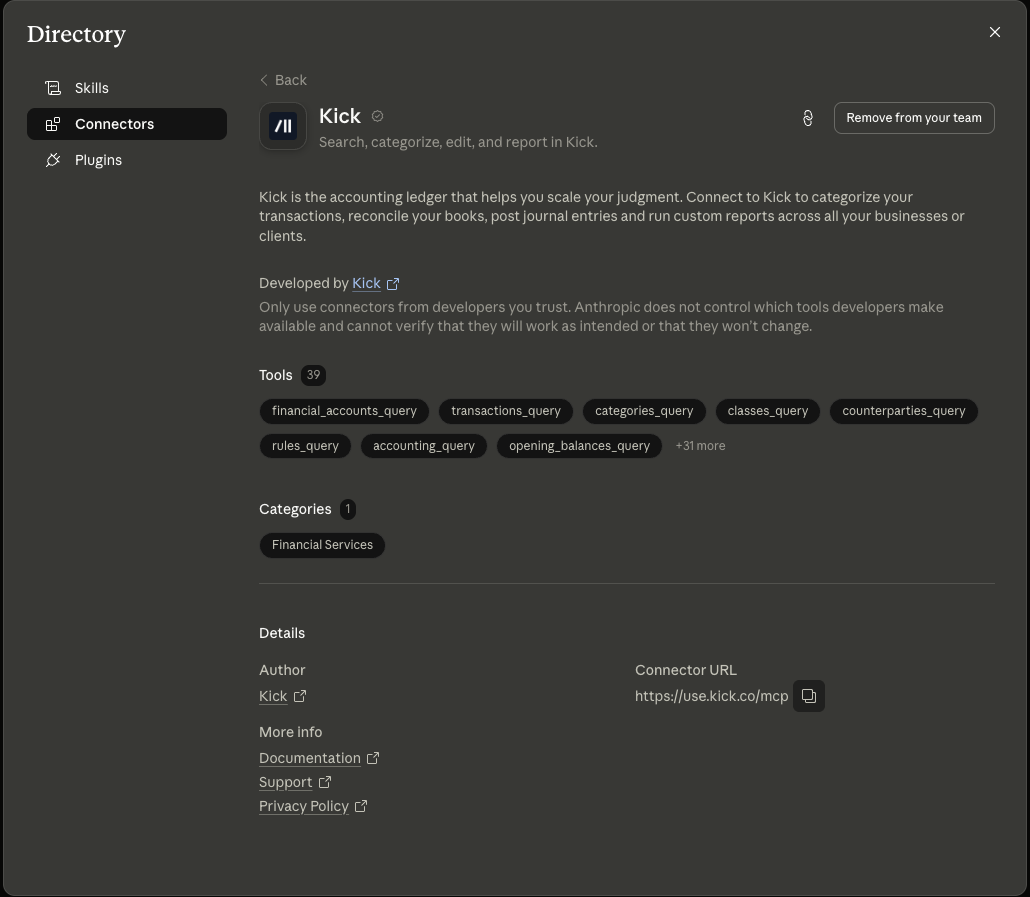
2. Select **Browse connectors**. The **Directory** opens on the **Connectors** tab
3. Search for **Kick** and open the Kick listing
4. Add Kick from the listing page
**Step 3: Authorize Kick Access**
A new window will open asking you to authorize the connection.
1. Sign in to your Kick account if prompted.
2. Under **Permissions**, choose **Read & write** or **Read only**. **Read & write** appears only when Claude asks for write access.
3. Under **Workspace access**, check **All workspaces**, or check each workspace Claude may use. **All workspaces** also covers workspaces you're added to later.
4. Click **Authorize**.
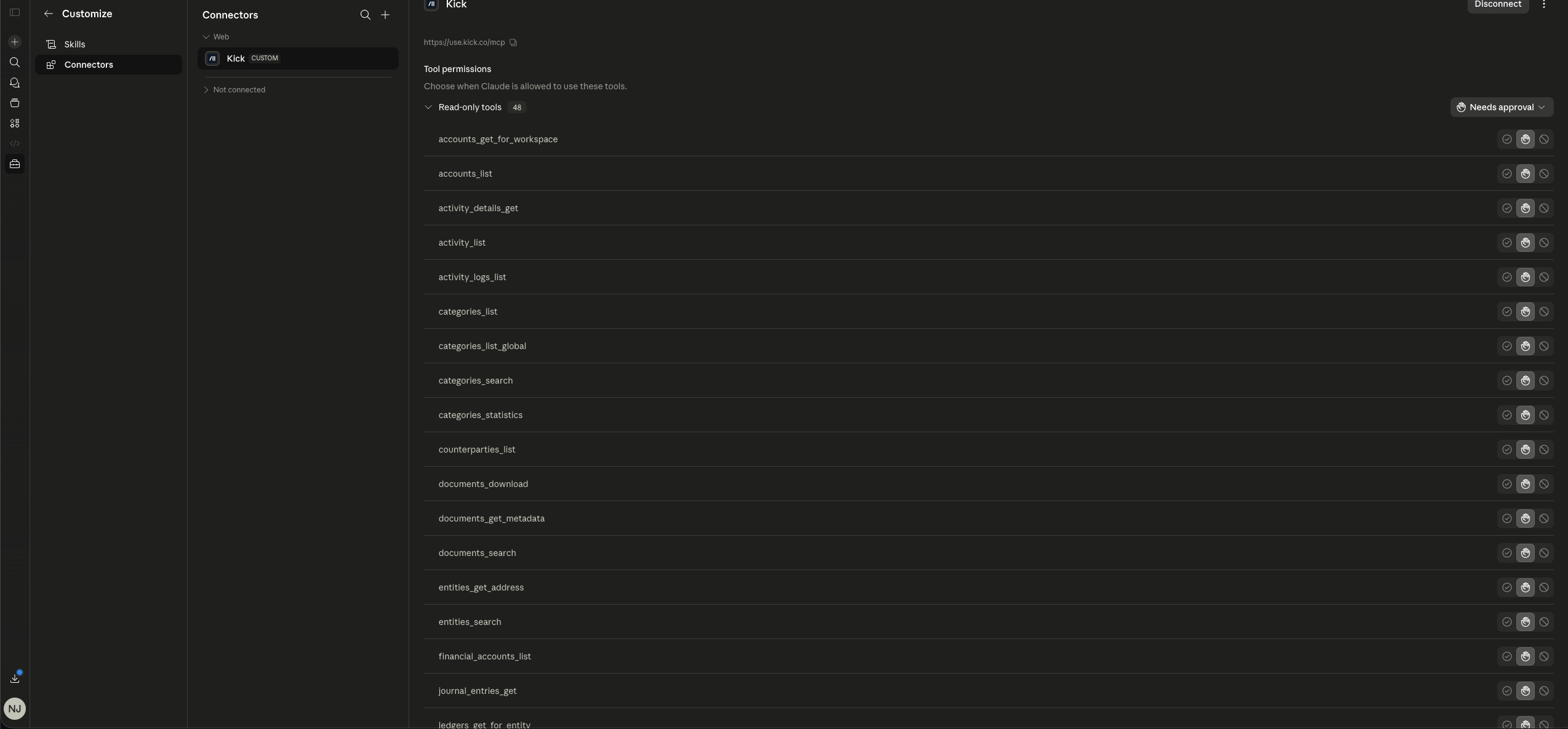
Kick will appear in your list of connectors.
For Claude Team and Enterprise Users
Team and Enterprise setup requires two phases: an Owner or an admin with permission to manage connectors adds Kick once for the organization, then individual team members connect their Kick accounts.
**Phase 1: Owner Setup (One-Time)**
1. Log in to Claude and go to **Settings** > **Organization settings** > **Connectors**
2. Click **Browse connectors**
3. Search for **Kick** and open the Kick listing
4. Add Kick to your team
Kick is now available to all organization members. The button on the listing page changes to **Remove from your team**, which is how you confirm Kick is added.
{% hint style="info" %}
Members whose role can't add connectors see a **Request** button on the Kick listing instead. Requesting sends it to your organization's admins for review.
{% endhint %}
**Phase 2: Member Setup (Each Team Member)**
After the Owner has added Kick, each team member connects their personal Kick account.
1. Log in to [Claude.ai Connectors](https://claude.ai/new#settings/connectors)
2. Find **Kick** in the list
3. Click **Connect**
4. Sign in to your Kick account if prompted
5. Choose which workspaces Claude can access
6. Click **Authorize**
> Each team member authenticates individually. Claude can only access the Kick workspaces that the connecting user already has permission to view.
***
#### Using Kick in a Conversation
Once connected, enable Kick for each conversation where you want to use it.
1. Start a new conversation or open an existing one
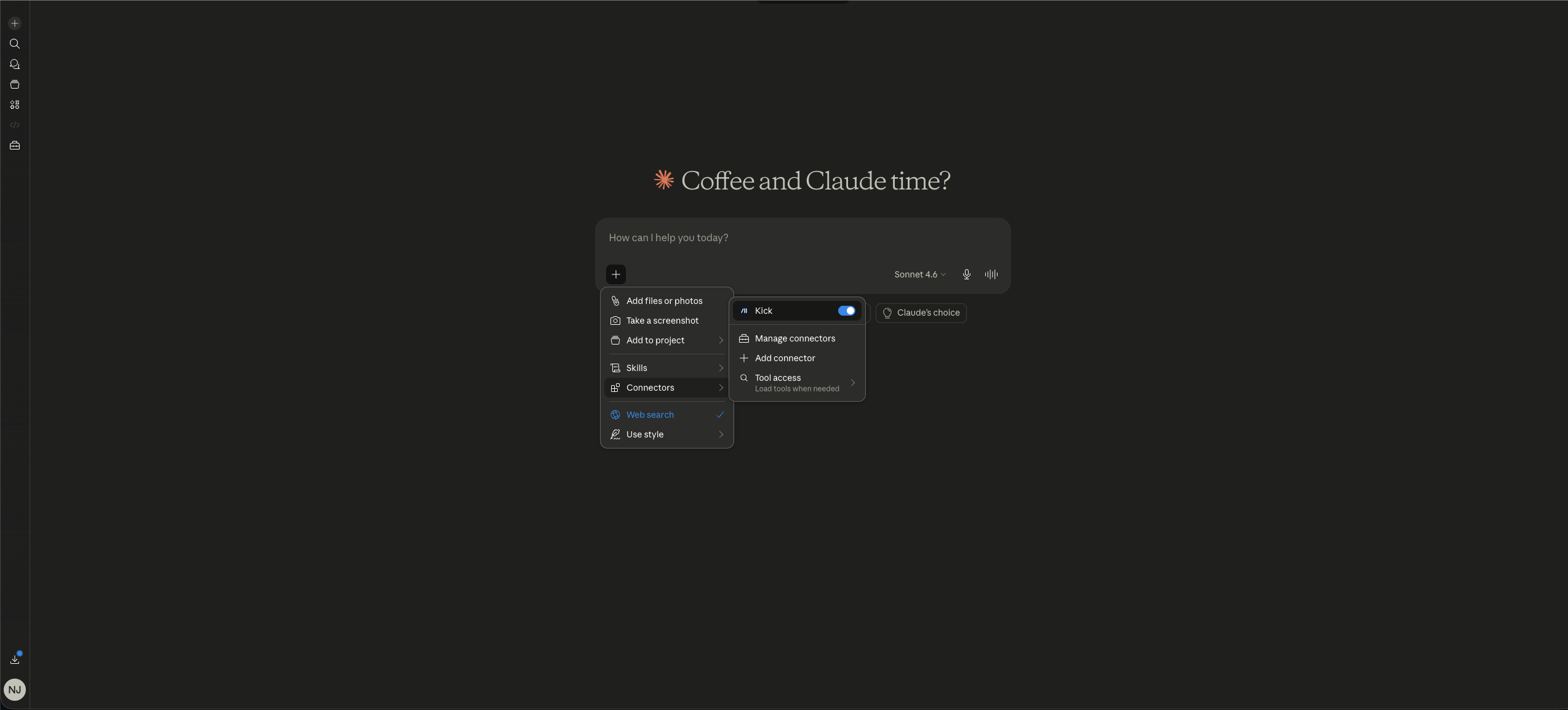
2. Click the **+** button in the lower left corner
3. Select **Connectors**
4. Toggle **Kick** on
The Kick icon will appear in the conversation header when enabled.
***
#### Verify Your Connection
Test that everything is working by starting a conversation with Kick enabled and asking:
```
List the Kick tools you can use and confirm the active workspace.
```
Claude should respond with available tools (like `transactions_query`, `reports_query`, `context_browse`) and your active workspace name.
***
#### Troubleshooting
**Kick Doesn't Appear in the Directory**
1. On Team and Enterprise plans, check whether an Owner or admin has added Kick yet. If your role can't add connectors, use the **Request** button on the Kick listing
2. Add Kick by URL instead, using the values in [Standard Connection Details](/ai/mcp/connectors/connect-custom-ai-tools.md#standard-connection-details)
**"No tools available" or Empty Tool List**
The authorization didn't complete successfully.
1. Go to your Connectors page
2. Click **Disconnect** on Kick
3. Click **Connect** again and complete the authorization flow
**Wrong Workspace Showing**
Your Kick account has access to multiple workspaces. Tell Claude which workspace you want to use:
```
Please switch to the [workspace name] workspace.
```
**Connection Shows as "Error" Status**
Network issue or temporary service interruption.
1. Refresh the page
2. Try disconnecting and reconnecting
3. If the issue persists, check [status.claude.com](https://status.claude.com)
***
#### **Data Privacy and Security**
* **Claude’s terms apply.** When you connect Kick to Claude, your use of Claude is governed by Anthropic’s terms and privacy policies, not Kick’s.
* **Business and individual Claude plans handle your data differently.** Team and Enterprise fall under Anthropic's Commercial Terms, and that data is not used to train Claude. On individual plans (Free, Pro, and Max), chats are used for training unless you turn off **Help improve Claude** in your privacy settings, and retention runs five years while that setting is on. Weigh that before pointing Claude at client books from a personal account.
* **Claude only sees what you enable.** Access depends on the connectors, permissions, and capabilities configured in Claude.
* **More access means more risk.** Features like desktop file access, browser automation, and computer-use tools are more powerful, but also higher risk than basic chat or read-only access.
* **Some Claude features can take action.** Not all integrations are read-only. Depending on what’s enabled, Claude may be able to modify files, interact with websites, or perform actions in connected tools.
* **Use copies of important files.** If Claude is working with documents or folders, avoid giving it original files, because AI-driven edits can produce unexpected changes.
* **Your organization may restrict certain features.** Admins can disable or limit higher-risk capabilities like web search, user-created skills, browser automation, and similar tools.
***
#### Next Steps
Now that you're connected:
1. Try a sample query: "List my workspaces" or "What tools can you use?"
2. Explore reports by asking Claude to generate financial reports for your clients
3. Check out the [Kick MCP Use Case Library](/ai/mcp/mcp-use-case-library.md) for advanced use cases
---
# Agent Instructions
This documentation is published with GitBook. GitBook is the documentation platform designed so that both humans and AI agents can read, navigate, and reason over technical content effectively. Learn more at gitbook.com.
## Querying This Documentation
If you need additional information that is not directly available in this page, you can query the documentation dynamically by asking a question.
Perform an HTTP GET request on the current page URL with the `ask` query parameter, and the optional `goal` query parameter:
```
GET https://docs.kick.co/ai/mcp/connectors/connect-claude.md?ask=&goal=
```
`ask` is the immediate question: it should be specific, self-contained, and written in natural language.
`goal` is optional and describes the broader end goal you are ultimately trying to accomplish on behalf of the user. GitBook uses it to tailor the answer towards what is most useful for that goal.
The response will contain a direct answer to the question and relevant excerpts and sources from the documentation.
Use this mechanism when the answer is not explicitly present in the current page, you need clarification or additional context, or you want to retrieve related documentation sections.