> For the complete documentation index, see [llms.txt](https://docs.kick.co/llms.txt). Markdown versions of documentation pages are available by appending `.md` to page URLs; this page is available as [Markdown](https://docs.kick.co/ai/mcp/connectors/connect-chatgpt.md).
# Connect ChatGPT
Ask ChatGPT to analyze your clients' books and take action. Pull reports, categorize transactions, and automate rules without leaving the conversation
#### What You'll Need
* A ChatGPT Plus, Team, or Enterprise account
* A Kick account with access to at least one workspace
{% hint style="info" %}
**Tip**: Log in to your Kick account in your browser before starting. This makes the authorization step faster.
{% endhint %}
***
#### Connect ChatGPT to Kick
**Step 1: Open the Kick Connector**
Open the [Kick connector for ChatGPT](https://chatgpt.com/plugins/plugin_asdk_app_6a3c003dd068819180296a55ee4b576f). The connector opens directly in ChatGPT. Click **Connect** to add Kick to your account.
**Step 2: Authorize the Connection**
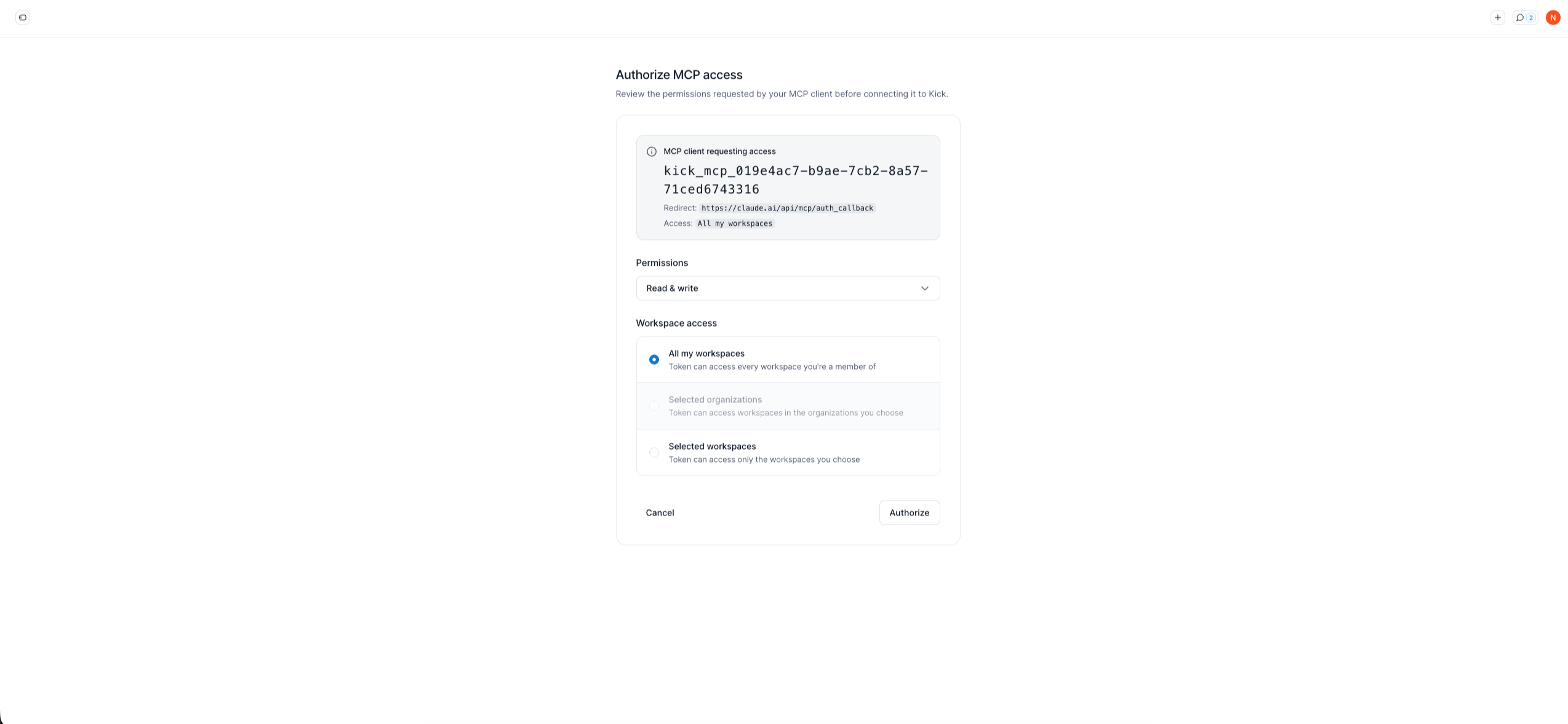
The Kick authorization page will open automatically.
1. Sign in to your Kick account if prompted
2. Choose your permissions:
* **Read & write**: Full access (write operations require your approval in ChatGPT)
* **Read-only**: View-only access
3. Choose workspace access:
* **All my workspaces**: Access all current and future workspaces
* **Selected organizations**: Choose specific organizations
* **Selected workspaces**: Choose specific workspaces
4. Click **Authorize**
**Step 3: Enable Kick in a Conversation**
Once authorized, enable Kick for each conversation where you want to use it.
1. Start a new chat in ChatGPT
2. Click the **+** menu near the message composer
3. Enable **Kick** for the conversation
***
#### Verify Your Connection
Test that everything is working by starting a conversation with Kick enabled and asking:
```
List the Kick tools you can use and confirm the active workspace.
```
ChatGPT should respond with available tools (like `transactions_query`, `reports_query`, `context_browse`) and your active workspace name.
***
#### Troubleshooting
**Authorization Failed or Connection Error**
The authorization didn't complete successfully.
1. Go to ChatGPT Settings → Apps
2. Remove the Kick app
3. Open the [Kick connector](https://chatgpt.com/plugins/plugin_asdk_app_6a3c003dd068819180296a55ee4b576f) again and complete the authorization flow
4. Make sure you click **Authorize** on the Kick authorization page
**Wrong Workspace Showing**
Your Kick account has access to multiple workspaces. Tell ChatGPT which workspace you want to use:
```
Please switch to the [workspace name] workspace.
```
***
#### **Data Privacy and Security**
* **Your data stays in Kick**: ChatGPT requests data through the MCP connection but doesn't store your Kick data permanently
* **Workspace permissions apply**: ChatGPT can only access workspaces you already have permission to view in Kick
* **You control access**: You can disconnect Kick at any time from the Apps settings
* **Confirmation required for changes**: Write operations require your explicit approval before execution
***
#### Next Steps
Now that you're connected:
1. Try a sample query: "List my workspaces" or "What tools can you use?"
2. Explore reports by asking ChatGPT to generate cash flow projection for your clients
3. Check out the [Kick MCP Use Case Library](/ai/mcp/mcp-use-case-library.md).
---
# Agent Instructions
This documentation is published with GitBook. GitBook is the documentation platform designed so that both humans and AI agents can read, navigate, and reason over technical content effectively. Learn more at gitbook.com.
## Querying This Documentation
If you need additional information that is not directly available in this page, you can query the documentation dynamically by asking a question.
Perform an HTTP GET request on the current page URL with the `ask` query parameter, and the optional `goal` query parameter:
```
GET https://docs.kick.co/ai/mcp/connectors/connect-chatgpt.md?ask=&goal=
```
`ask` is the immediate question: it should be specific, self-contained, and written in natural language.
`goal` is optional and describes the broader end goal you are ultimately trying to accomplish on behalf of the user. GitBook uses it to tailor the answer towards what is most useful for that goal.
The response will contain a direct answer to the question and relevant excerpts and sources from the documentation.
Use this mechanism when the answer is not explicitly present in the current page, you need clarification or additional context, or you want to retrieve related documentation sections.