> For the complete documentation index, see [llms.txt](https://docs.kick.co/llms.txt). Markdown versions of documentation pages are available by appending `.md` to page URLs; this page is available as [Markdown](https://docs.kick.co/accountants/setting-up/migration/quickbooks-migration-checklist.md).
# QuickBooks Online → Kick Migration Checklist
A phase-by-phase checklist for migrating a client from QuickBooks Online to Kick.
## Phase 1: Pre-migration
{% hint style="info" %}
The QuickBooks migration feature is currently in beta and available to select firms. Reach out to your Kick contact if you don't see it in your workspace.
{% endhint %}
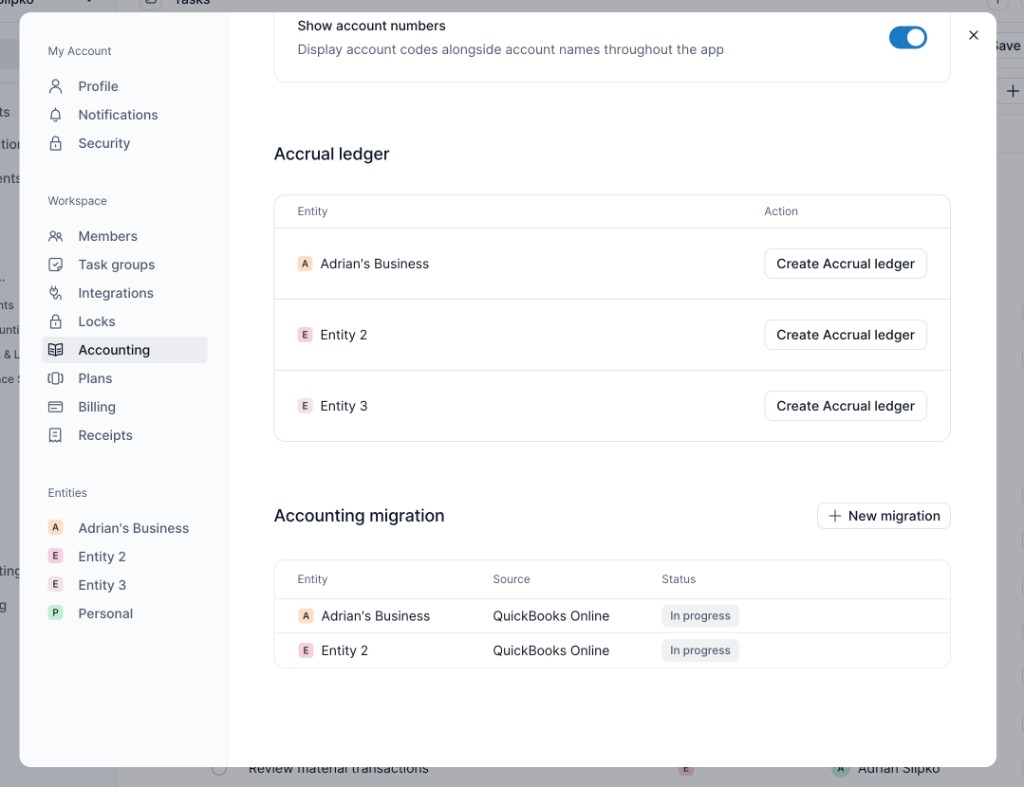
* [ ] **If migrating accrual data:** Enable the accrual ledger in Kick before starting — go to Settings (your profile icon on the top right of the workspace, or CMD+K) → Accounting → Accrual Ledger → Create Accrual Ledger for each relevant client. This must be done before migration begins; once a cash basis migration is complete, you can't start a new migration — the only option is to remove the existing migration entirely and restart.
***
## Phase 2: Scope the migration
* [ ] **Confirm how far the books are closed in QuickBooks** (see [Migration](/accountants/setting-up/migration.md) for timing guidance)
* Migrate when you're done with bulk workflows for the period. Minor cleanup can happen post-migration via edits to migration entries or manual JEs.
* Migrated transactions come over as individual journal entries — bulk categorization workflows on that historical data won't carry over
* *To check how far back your QBO data goes: open P\&L in QBO → toggle Display columns by Year with All Dates*
* [ ] **Agree on a migration start date.** Everything before this date comes from QBO; Kick takes over from that date forward *(the bookkeeping start date in Kick will be set to the day after your migration end date)*
***
## Phase 3: Start the migration in Kick
*Full reference:* [*Migration*](/accountants/setting-up/migration.md)
**Option A: New client (not yet in Kick)**
* [ ] From the Clients tab, click **Add client** (top right). You'll land on the **How would you like to set up your Chart of Accounts?** screen.
* [ ] Select **QuickBooks Online** and connect to the client's QBO account
* [ ] Fill in client details, entity type, bookkeeping start date, and plan
* [ ] Set the migration date range and confirm client details to kick off the migration
**Option B: Client already exists in Kick**
* [ ] Confirm the Kick start date matches the agreed takeover date *(set during client setup, viewable in the Clients tab; see* [*Editing Entity Start and End Dates*](/accountants/managing-clients/entity-management/editing-entity-start-and-end-dates.md)*)*
* [ ] Open **Settings** for the workspace → select **Accounting** in the left sidebar
* [ ] In the **Accounting migration** section, click **New migration** → select **QuickBooks Online**
* [ ] Select your firm → select the client
* [ ] Click **Next** → **Connect** *(read-only, one-way sync)*
* [ ] Enter the migration end date → click **Continue** and wait for the page to load
{% hint style="danger" %}
**During Quickbooks Online authorization, do NOT click "Install for your firm".** This is a common mistake. Select your firm first, then select the specific client only.
{% endhint %}
***
## Phase 4: Map the chart of accounts
*Reference:* [*Chart of Accounts*](/accountants/setting-up/chart-of-accounts.md)
* [ ] After migration completes, Kick automatically generates a set of tasks. Go to the **Tasks** tab to see them. Tip: switch the group-by filter to **By task group** to stay organized
* [ ] Open the **Map Accounts** task → click **Map Accounts** at the bottom
* [ ] Walk through the COA list (QBO on left, Kick on right):
* Bank and credit card accounts will show "task created"; skip these for now, they'll be connected in Phase 6
* For custom accounts: hover the row → click **Create Account** on the right side
* To undo a custom mapping: click the undo icon on that row
* [ ] Pay extra attention to **equity accounts**: multi-owner entities often need custom mapping (e.g. splitting contributions vs. distributions per owner)
* [ ] Click **Accept Mapping** (bottom right) to confirm
{% hint style="info" %}
This is a good opportunity to clean up the chart of accounts. You can create new accounts, adjust types and subtypes, and leave accounts with no data unmapped; they won't bring anything over.
{% endhint %}
***
## Phase 5: Verify the migration
*Reference:* [*Profit & Loss*](/accountants/reports/profit-and-loss.md) *·* [*Balance Sheet*](/accountants/reports/balance-sheet.md)
* [ ] Go to **Accounting → Profit and Loss**
* [ ] Confirm the P\&L ties to QuickBooks for the migrated period
* [ ] Note: beginning balances for reconciliation are auto-calculated, so no manual entry is needed *(see* [*Import Opening Balances*](/accountants/setting-up/chart-of-accounts/import-opening-balances.md) *if adjustments are ever needed)*
***
## Phase 6: Connect live accounts
*Full reference:* [*Connect Accounts*](/accountants/setting-up/integrations/connect-accounts.md)
* [ ] Go to the **Tasks** tab. Individual **Connect Account** tasks are auto-generated for each bank and credit card account identified during migration. Open each task to connect that account.
* [ ] Alternatively, go to the **Accounts** tab (top of the page) to connect accounts directly
* [ ] Connect bank accounts and credit cards via Plaid. The client can do this directly, or together if you have the logins *(for unsupported banks, use the* [*Universal Importer*](/accountants/setting-up/universal-importer.md)*)*
* [ ] Rename accounts if needed: hover the row → 3 dots → **Settings → Edit name** *(see* [*Manage Integrations*](/accountants/setting-up/integrations/manage-integrations.md)*)*
***
## Phase 7: Map migrated accounts to live feeds
*Reference:* [*Tasks*](/accountants/close-workflows/tasks.md)
* [ ] Go to the **Tasks** tab → find **Map migrated data** under To Do and open it
* [ ] For each migrated bank/CC account, map it to the matching live integration account; this creates one continuous transaction feed
* [ ] For any accounts that are **no longer active**: click **Mark as closed** to complete that step
***
## Phase 8: Important things to know
* [ ] **Migration is static.** It does not auto-refresh. If your QBO data changes after migration or you want to extend the date range, reach out to the Kick team to resync *(see* [*Migration*](/accountants/setting-up/migration.md)*)*
* [ ] **Need to redo the migration?** Go to **Settings → Accounting → Accounting migration** and remove and restart the QuickBooks migration from there. This deletes the migration so you can start completely fresh.
***
## Common gotchas: quick reference
| Situation | What to do |
| ------------------------------------------ | ----------------------------------------------------------------------------------------------------------------- |
| Clicked "Install for your firm" by mistake | Back out and re-select firm → then select the client only |
| Books aren't substantially closed in QBO | Hold off. Minor cleanup is fine post-migration, but bulk workflows are lost |
| QBO data was updated after migration | Migration is static; contact the Kick team to resync |
| Account mapping went wrong | Settings → Accounting → Accounting migration, remove and restart the QuickBooks migration, then redo from Phase 3 |
| Bank account is no longer active | Mark as closed in the Tasks mapping step |
| Institution not supported by Plaid | Use the [Universal Importer](/accountants/setting-up/universal-importer.md) to upload statements |
---
# Agent Instructions
This documentation is published with GitBook. GitBook is the documentation platform designed so that both humans and AI agents can read, navigate, and reason over technical content effectively. Learn more at gitbook.com.
## Querying This Documentation
If you need additional information that is not directly available in this page, you can query the documentation dynamically by asking a question.
Perform an HTTP GET request on the current page URL with the `ask` query parameter, and the optional `goal` query parameter:
```
GET https://docs.kick.co/accountants/setting-up/migration/quickbooks-migration-checklist.md?ask=&goal=
```
`ask` is the immediate question: it should be specific, self-contained, and written in natural language.
`goal` is optional and describes the broader end goal you are ultimately trying to accomplish on behalf of the user. GitBook uses it to tailor the answer towards what is most useful for that goal.
The response will contain a direct answer to the question and relevant excerpts and sources from the documentation.
Use this mechanism when the answer is not explicitly present in the current page, you need clarification or additional context, or you want to retrieve related documentation sections.
.png?alt=media)