> For the complete documentation index, see [llms.txt](https://docs.kick.co/llms.txt). Markdown versions of documentation pages are available by appending `.md` to page URLs; this page is available as [Markdown](https://docs.kick.co/accountants/setting-up/integrations/bill.md).
# BILL
Sync your BILL bills, invoices, vendors, customers, and payment directly into Kick.
{% hint style="info" %}
**Before you connect**
You must be an **admin** of your BILL account to connect the integration.
{% endhint %}
### **Connecting BILL**
You can connect BILL from either of two places:
**From the** [**Accounts**](https://use.kick.co/accounts) **tab**
1. Go to the **Accounts** tab
2. Click **Connect account**
3. Select **BILL**
**From the** [**Bill Pay**](https://use.kick.co/billing) **tab**
1. Navigate to the **Bill pay** tab
2. Click **Connect BILL**
3. Complete the token setup steps below
Regardless of where you connect, all data types (bills, invoices, vendors, customers, and payments) will sync.
#### **Step 1: Initiate connection in Kick**
If you started from the **Bill Pay** tab, Kick opens the connection flow automatically. Otherwise:
1. Go to the **Accounts** tab
2. Click **Connect account**
3. Select **BILL**
#### **Step 2: Create an API token in BILL**
You'll need to create a sync token in your BILL account:
1. Sign in to your [bill.com](https://login.us.bill.com/neo/login) account
2. In the left navigation, open **Settings**
3. Go to **Sync & Integrations → Tokens**
4. Click **Create token**
5. Enter a token name (for example, `kick-bill-integration`) and save
6. Copy the **token value** (the secret string BILL shows once, like a password) to your clipboard before you leave the screen
{% hint style="warning" %}
Copy the token value to your clipboard before closing the screen - BILL only shows it once.
{% endhint %}
{% embed url="" %}
#### **Step 3: Complete connection in Kick**
1. Return to Kick
2. Enter the **token name** (you can use the same name you chose in BILL) and paste the **token value**
3. Click **Connect**
{% embed url="" %}
***
### **Chart of Accounts mapping**
To categorize bills and invoices to the correct GL account without further work, upload your Kick Chart of Accounts to BILL.
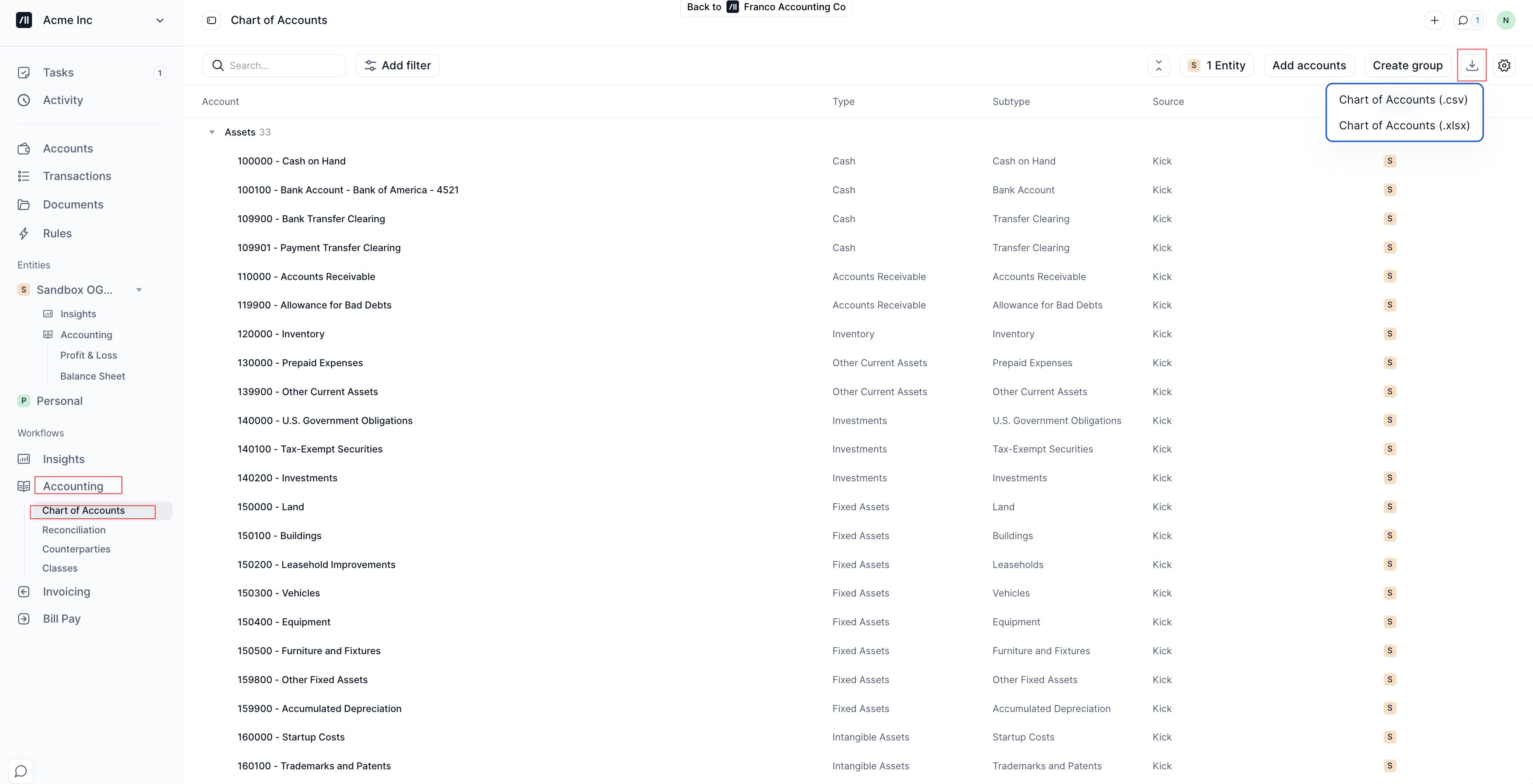
#### **Export from Kick**
1. In Kick, go to **Accounting > Chart of Accounts**
2. Click the download icon in the top right
3. Select **Chart of Accounts (.csv)**
4. Save the file
#### **Import to BILL**
1. In BILL, open **Settings** in the left navigation, then go to **Import & export**
2. Click **Custom File Integration** in the left sidebar
3. Scroll to **Accounts** and click **Import**
4. Upload the CSV file from Kick
5. Map fields if prompted and complete the import
Your Kick GL accounts are now available when categorizing bills and invoices in BILL.
{% embed url="" %}
***
### **What syncs from BILL**
Once connected, the following data syncs automatically:
* **Bills** — All bills created in BILL
* **Invoices** — All invoices created in BILL
* **Vendors** — Vendor information and contact details
* **Customers** — Customer information and contact details
* **Payments** — Payment transactions and status updates
* **GL account assignments** — Account categorizations for bills and invoices
***
### **Viewing BILL data in Kick**
* **Bills** sync on the [Bill Pay](/accountants/bookkeeping-workflows/bill-pay.md) tab
* **Invoices** sync on the [Invoicing](/accountants/bookkeeping-workflows/invoicing.md) tab
For details on how Kick handles accounts payable and receivable reconciliation, see [Bill Pay](/accountants/bookkeeping-workflows/bill-pay.md) and [Invoicing](/accountants/bookkeeping-workflows/invoicing.md).
***
## **FAQ**
What to do if my connection failed?
* Verify you created a sync token under **Settings → Sync & Integrations → Tokens** in BILL
* Ensure you copied the **token value** to your clipboard and entered the **token name** in Kick
* Check for extra spaces when pasting
Why my bills are not syncing in Kick?
* Confirm bills are saved in BILL
* Check last sync time in Kick **Accounts** tab
* Refresh the **Bill Pay** tab
Why some GL accounts are missing in BILL?
* Confirm you imported Chart of Accounts (see Chart of Accounts mapping above)
* If you updated your Chart of Accounts in Kick, you will have to manually [update your accounts in BILL](#import-to-bill.com)
* Check import status: **Settings → Import & export → History** in BILL
---
# Agent Instructions
This documentation is published with GitBook. GitBook is the documentation platform designed so that both humans and AI agents can read, navigate, and reason over technical content effectively. Learn more at gitbook.com.
## Querying This Documentation
If you need additional information that is not directly available in this page, you can query the documentation by asking a question.
Perform an HTTP GET request on the following URL with the `ask` and `goal` query parameters:
```
GET https://docs.kick.co/accountants/setting-up/integrations/bill.md?ask=&goal=
```
`ask` is the immediate question: it should be specific, self-contained, and written in natural language.
`goal` is what the user is ultimately trying to achieve, the reason they need the answer. Sharing it helps GitBook give you a better, more relevant answer. A goal is most helpful when it describes the outcome the user wants rather than restating the question. For example, with `ask=how do I create an API token`, a goal like `automate deployments from our CI pipeline` lets GitBook tailor the answer to that use case.
The response will contain a direct answer to the question and relevant excerpts and sources from the documentation.
Use this mechanism when the answer is not explicitly present in the current page, you need clarification or additional context, or you want to retrieve related documentation sections.