> For the complete documentation index, see [llms.txt](https://docs.kick.co/llms.txt). Markdown versions of documentation pages are available by appending `.md` to page URLs; this page is available as [Markdown](https://docs.kick.co/accountants/schedules/revenue-recognition/start-a-recognition-schedule.md).

# Start a recognition schedule

Apply a policy to an invoice, payment, or manual amount, and see which journal entries Kick posts.

Attach a policy to a payment or invoice already in Kick, or add a manual amount when the work has started and no source is in Kick yet.

{% hint style="info" %}
**Use the Accrual review saved view**. The best place to start is the **Accrual review** saved view on the **Transactions** tab or the **Invoicing** tab. It puts the source and the **Recognition schedule** column in the same review path.
{% endhint %}

### Applying a policy from a source

A recognition schedule starts from the source that carries the amount to recognize. The source can be a transaction, an invoice or invoice line, or a manual amount. Applying a policy to that source creates the schedule.

***

### Choose the source

#### From a transaction

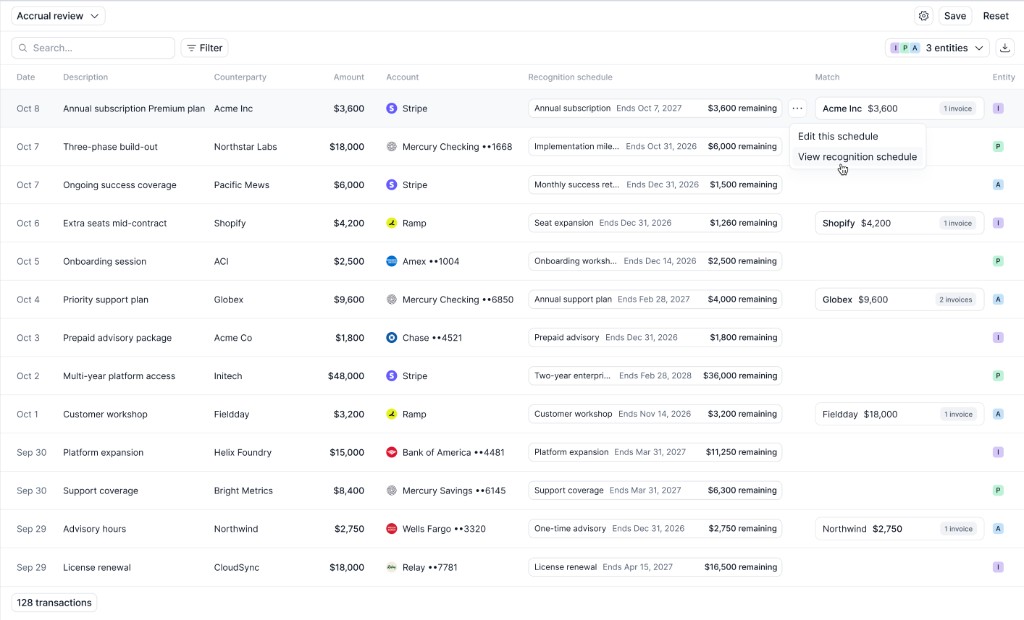
Use a transaction when the payment is the record that carries the amount to recognize. In **Accrual review**, open the **Recognition schedule** column on the transaction and choose the policy.

<figure><img src="https://290614220-files.gitbook.io/~/files/v0/b/gitbook-x-prod.appspot.com/o/spaces%2FiOfJtU5BnOhuPqTiOHth%2Fuploads%2Fgit-blob-300d4acd6384ea5467bfbd95b8dedc12db06e32c%2Faccrual-review-recognition-schedule.png?alt=media" alt="Accrual review with the Recognition schedule column, and the row menu open on View recognition schedule"><figcaption></figcaption></figure>

After a policy is applied, open the row menu and click **View recognition schedule**. **Edit this schedule** opens the same schedule for a change.

#### A bank payment that includes tax or a deposit

{% hint style="info" %}
**Split the payment first**. [Split the payment](/accountants/bookkeeping-workflows/splits.md#splitting-a-transaction-manually) so the policy sits on the service after the discount. Leave tax on the sales tax account and the deposit on the customer deposits account, with no recognition schedule. When the same split repeats, use a [Split Rule](/accountants/bookkeeping-workflows/rules.md#split-rules).
{% endhint %}

#### From an invoice

Use an invoice when the invoice line is the amount to recognize. The invoice must be **Open** or **Paid**, and in USD. A **Draft**, **Void**, or **Uncollectible** invoice cannot start a schedule. In **Accrual review**, open the **Recognition schedule** column on the invoice line or invoice.

**The whole invoice**. The schedule uses the service lines minus the discount lines that point at them. Tax stays on sales tax payable. A deposit stays on customer deposits.

**One service line**. The schedule uses that line minus its share of the discount. Tax and discount lines follow the line they came from, and they have no schedule of their own.

#### Stripe

Schedule the Stripe charge, not the Stripe invoice line. Split the charge so the policy is on the service after the discount, and tax has no schedule. Match the charge to the invoice, and leave the invoice without a recognition schedule.

{% hint style="warning" %}
Stripe calculates discount and tax per line. Kick stores them as invoice totals, so a policy on the Stripe invoice line does not see that split.
{% endhint %}

#### Apply manually

Use a manual amount when the work has started but the source is not in Kick yet, such as a migrated entity or a contract that began before the invoice exists.

Click **Apply**, then **Add manually**.

Enter **Source label**, **Amount**, and **Term start**. If the policy uses a specific date, enter **Specific date**. When the policy covers more than one entity, choose **Entity**.

{% hint style="info" %}
When you apply a policy manually, Kick posts the recognition entries for every period, including future periods. The general ledger and the waterfall both include them.
{% endhint %}

***

### Apply in bulk

When several rows use the same policy, select them from the review table and click **Set recognition schedule**. Each selected row becomes its own recognition schedule.

***

### Set a schedule with a rule

Set the rule criteria first, then continue to the **Actions** section. Choose **Set recognition schedule** and select the policy. When the rule runs, Kick starts a recognition schedule for each matching transaction.

**Auto confirm** off leaves the schedule as a draft and posts nothing. Open **Review rule-suggested revenue schedules** and confirm it. Confirming posts the same entries as applying the policy directly, including future periods. **Auto confirm** on posts those entries when the rule runs.

A Split Rule can set a policy on each split line. Use that when part of the payment is tax or a deposit.

→ [Rules](/accountants/bookkeeping-workflows/rules.md#split-rules)

***

### What posts

**Post the schedule**. Kick posts a recognition entry for every period, including future periods. Each entry debits the holding account, credits the revenue account, and uses that period's date. A rule with **Auto confirm** off posts nothing until you confirm the schedule.

<table><thead><tr><th width="150">When</th><th>Deferred, from an invoice or payment</th><th>Deferred, entered manually</th><th>Accrued</th></tr></thead><tbody><tr><td><strong>On apply</strong></td><td>The source amount moves to the holding account.</td><td>Kick debits the recognition account and credits the holding account on the term start.</td><td>No opening entry.</td></tr><tr><td><strong>Each period, including future periods</strong></td><td>Debit the holding account, credit the revenue account.</td><td>Debit the holding account, credit the revenue account.</td><td>Debit the holding account, credit the revenue account. This builds the holding asset.</td></tr><tr><td><strong>When the customer pays</strong></td><td>The payment clears accounts receivable. It does not credit revenue again.</td><td>The payment clears accounts receivable. It does not credit revenue again.</td><td>The payment clears the accrued-revenue asset. It does not credit revenue again.</td></tr></tbody></table>

A rule with **Auto confirm** off skips the apply and recognition entries until you confirm it from **Review rule-suggested revenue schedules**. Confirming posts the same entries. The payment row still waits for the customer to pay.


---

# Agent Instructions
This documentation is published with GitBook. GitBook is the documentation platform designed so that both humans and AI agents can read, navigate, and reason over technical content effectively. Learn more at gitbook.com.

## Querying This Documentation
If you need additional information that is not directly available in this page, you can query the documentation by asking a question.

Perform an HTTP GET request on the following URL with the `ask` and `goal` query parameters:

```
GET https://docs.kick.co/accountants/schedules/revenue-recognition/start-a-recognition-schedule.md?ask=<question>&goal=<user_goal>
```

`ask` is the immediate question: it should be specific, self-contained, and written in natural language.
`goal` is what the user is ultimately trying to achieve, the reason they need the answer. Sharing it helps GitBook give you a better, more relevant answer. A goal is most helpful when it describes the outcome the user wants rather than restating the question. For example, with `ask=how do I create an API token`, a goal like `automate deployments from our CI pipeline` lets GitBook tailor the answer to that use case.

The response will contain a direct answer to the question and relevant excerpts and sources from the documentation.

Use this mechanism when the answer is not explicitly present in the current page, you need clarification or additional context, or you want to retrieve related documentation sections.
