> For the complete documentation index, see [llms.txt](https://docs.kick.co/llms.txt). Markdown versions of documentation pages are available by appending `.md` to page URLs; this page is available as [Markdown](https://docs.kick.co/accountants/bookkeeping-workflows/consolidation/reports-and-eliminations.md).
# Review Consolidated Reports and Eliminations
Review consolidated financial statements, automatic eliminations, and intercompany activity.
After you [create a consolidation group](/accountants/bookkeeping-workflows/consolidation/set-up-a-consolidation-group.md), use Reporting to open the group’s financial statements and review the eliminations behind its consolidated balances.
***
### Open consolidated reports
Consolidated reports are available for clients on Advanced or Enterprise. On other plans, Reporting lists only individual entity reports.
Use any of these entry points:
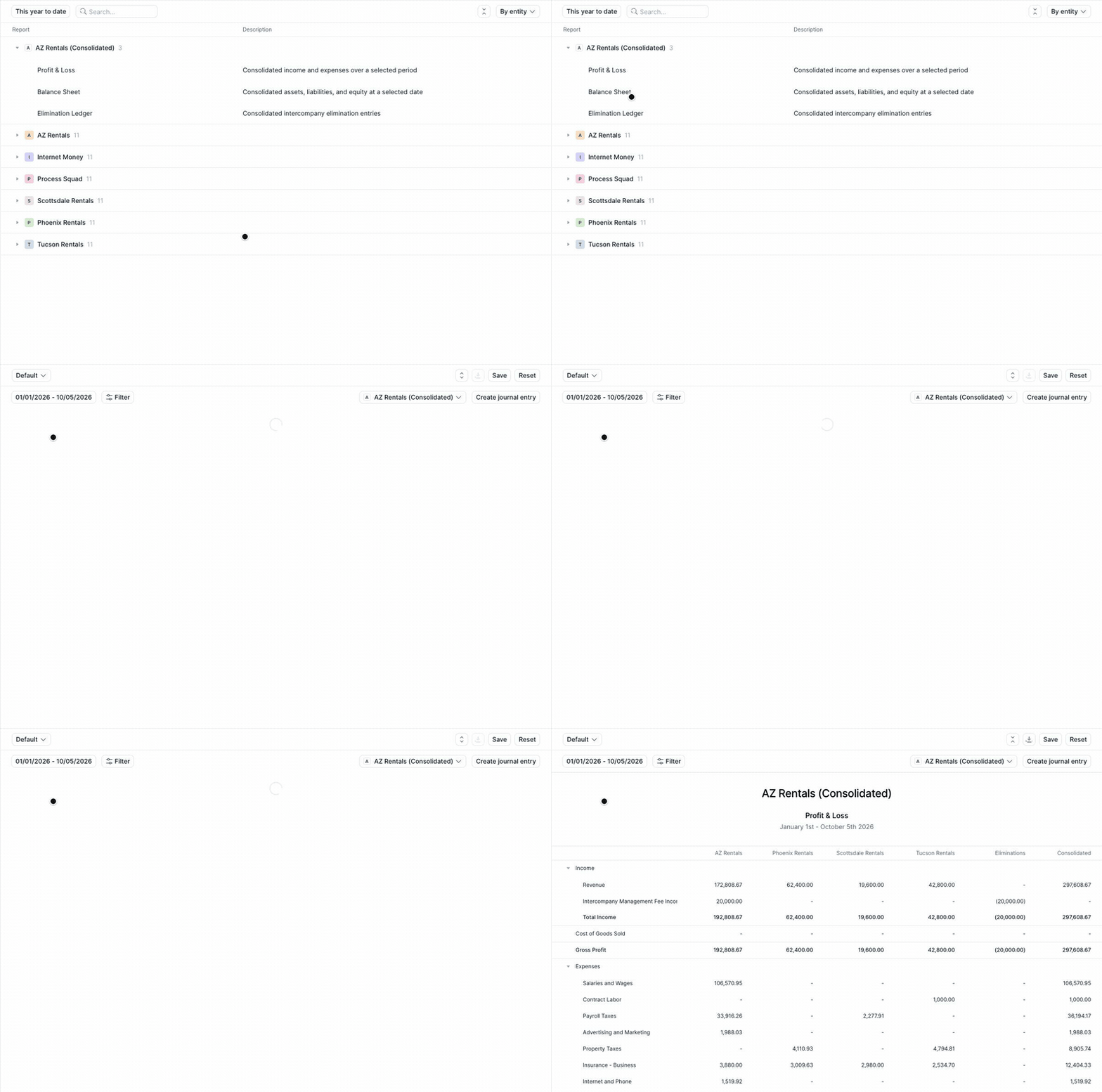
* Open **Workflows** → **Reporting** and expand **\[Parent entity] (Consolidated)**, listed above the individual entities.
* Expand **\[Parent entity] (Consolidation Group)** in the Entities area of the left navigation, then select **Profit & Loss**, **Balance Sheet**, or **All reports**.
* Select the group on the [Ownership canvas](/accountants/bookkeeping-workflows/consolidation/ownership-canvas.md), then click **View Reporting**.
* In the group side panel, open **Elimination Ledger**, **Profit & Loss (Consolidated)**, or **Balance Sheet (Consolidated)**.
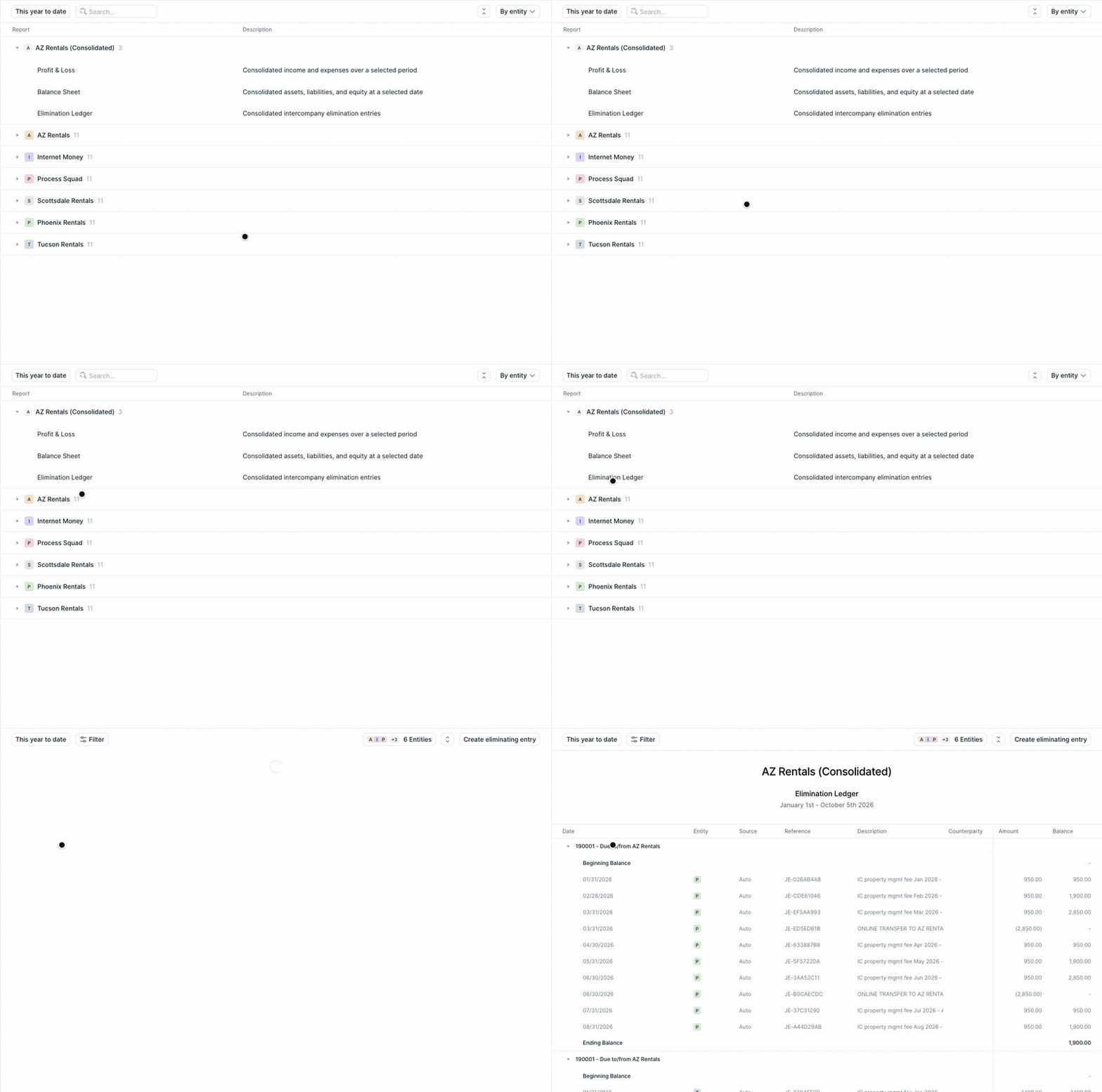
In Reporting, the group lists three reports:
* **Profit & Loss**. Consolidated income and expenses over a selected period.
* **Balance Sheet**. Consolidated assets, liabilities, and equity at a selected date.
* **Elimination Ledger**. Consolidated intercompany elimination entries.
Use the date range and search controls to narrow the catalog. The grouping control reads **By entity** by default. Select **Report** to group the catalog by report type instead, or **Entity** to switch back.
***
### Read a consolidated report
Consolidated Profit & Loss and Balance Sheet reports show:
* A column for each consolidated entity
* An **Eliminations** column
* A **Consolidated** column after eliminations
Select an entity amount to open its General Ledger activity in a drawer. Select an amount in the **Eliminations** column to open the Elimination Ledger filtered to the related account. The **Consolidated** column is not drillable.
On either report, use the entity selector to switch between **\[Parent entity] (Consolidated)** and an individual entity. The ledger selector is hidden for consolidated reports because each group member’s ledger is configured on the Ownership canvas.
***
### How automatic eliminations work
Kick evaluates intercompany activity between entities in the group. When it finds matching activity on both sides of an entity pair, it applies the elimination to the consolidated reports.
Kick only eliminates amounts that match exactly. It does not partially eliminate an unmatched balance. If activity cannot be matched, it remains in the consolidated report and appears as **Unmatched** on the Intercompany page.
The report period affects each statement differently:
* Profit & Loss shows eliminations dated within the selected period.
* Balance Sheet includes eliminations through the report date.
* The Elimination Ledger carries eliminations before the selected period into **Beginning Balance**, so it ties to the Balance Sheet.
Manual eliminating entries are included in the same **Eliminations** and **Consolidated** columns.
***
### Use the Elimination Ledger
The **Elimination Ledger** shows the detailed activity behind the **Eliminations** column. Expand an account to review **Beginning Balance**, its entries, and **Ending Balance**.
* **Auto** rows are eliminations Kick applied automatically.
* **Manual** rows are group-level eliminating entries.
* Select an Auto reference to open its journal entry.
* Select a Manual reference to edit or delete the eliminating entry.
* Use the account, entity, counterparty, source, amount, and direction controls to narrow the view.
* Click **Create eliminating entry** to add a group-level manual adjustment.
→ [Manual Eliminating Entries](/accountants/bookkeeping-workflows/consolidation/manual-eliminating-entries.md)
***
### Review intercompany activity
Use **Accounting** → **Intercompany** to review the source activity behind automatic eliminations and unmatched balances.
{% hint style="info" %}
Select a date range before reviewing the Elimination Ledger or Intercompany page so each view reflects the period you are closing.
{% endhint %}
***
### Next step
After reviewing the consolidated totals, inspect the matched and unmatched activity behind them.
→ [Review and Resolve Intercompany Activity](/accountants/bookkeeping-workflows/consolidation/intercompany.md)
---
# Agent Instructions
This documentation is published with GitBook. GitBook is the documentation platform designed so that both humans and AI agents can read, navigate, and reason over technical content effectively. Learn more at gitbook.com.
## Querying This Documentation
If you need additional information that is not directly available in this page, you can query the documentation by asking a question.
Perform an HTTP GET request on the following URL with the `ask` and `goal` query parameters:
```
GET https://docs.kick.co/accountants/bookkeeping-workflows/consolidation/reports-and-eliminations.md?ask=&goal=
```
`ask` is the immediate question: it should be specific, self-contained, and written in natural language.
`goal` is what the user is ultimately trying to achieve, the reason they need the answer. Sharing it helps GitBook give you a better, more relevant answer. A goal is most helpful when it describes the outcome the user wants rather than restating the question. For example, with `ask=how do I create an API token`, a goal like `automate deployments from our CI pipeline` lets GitBook tailor the answer to that use case.
The response will contain a direct answer to the question and relevant excerpts and sources from the documentation.
Use this mechanism when the answer is not explicitly present in the current page, you need clarification or additional context, or you want to retrieve related documentation sections.