> For the complete documentation index, see [llms.txt](https://docs.kick.co/llms.txt). Markdown versions of documentation pages are available by appending `.md` to page URLs; this page is available as [Markdown](https://docs.kick.co/accountants/bookkeeping-workflows/consolidation/manual-eliminating-entries.md).
# Manual Eliminating Entries
Create, edit, delete, and reverse group-level eliminating entries.
After you [review intercompany activity](/accountants/bookkeeping-workflows/consolidation/intercompany.md), use a manual eliminating entry for an adjustment that belongs in the consolidated result without changing an individual entity’s ledger.
***
### Create an entry from the Elimination Ledger
Eliminating entries are available for clients on Advanced or Enterprise, in workspaces with a consolidation group.
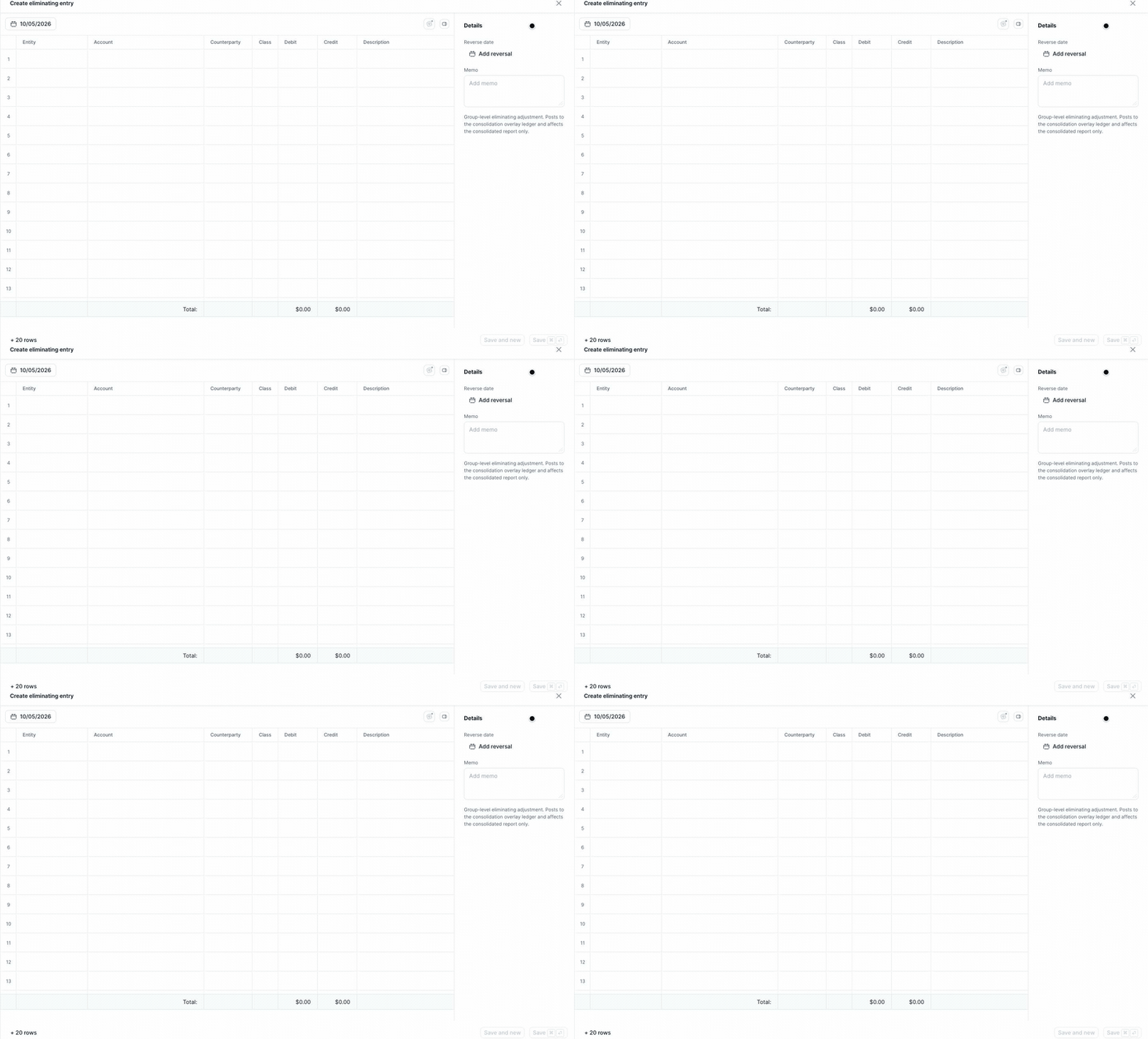
1. Open the [**Elimination Ledger**](/accountants/bookkeeping-workflows/consolidation/reports-and-eliminations.md#use-the-elimination-ledger) for the consolidation group.
2. Click **Create eliminating entry**.
3. Select the entry date. It defaults to today.
4. For each line, select an **Entity** and **Account**.
5. Enter the debit or credit amount for each line.
6. Add a **Counterparty**, **Description**, or **Class** when needed. Class is shown only when Classes are enabled for the workspace. Use column settings to show **Exclude from 1099**.
7. Confirm the entry balances.
8. Optionally add a **Reverse date** or **Memo** under **Details**.
9. Click **Save** or **Save and new**.
| Option | What it does |
| ---------------- | ------------------------------------------------------------------------------------------------- |
| **Save** | Creates the entry and closes the drawer. |
| **Save and new** | Creates the entry and opens a blank form with the same date. Shown only when you create an entry. |
The entry needs at least two complete lines, and the debit and credit totals must match before it can be saved. Click **+ 20 rows** if you need more lines.
{% hint style="info" %}
The account list is scoped to the selected entity, so select the entity before choosing the account.
{% endhint %}
***
### Edit an eliminating entry
1. Open the Elimination Ledger.
2. Find a row with **Manual** in the Source column.
3. Select its **Reference** to open the eliminating entry.
4. Update the date, lines, reverse date, or memo.
5. Click **Save**.
Auto references open the source journal entry instead. Only Manual references open the eliminating-entry editor.
***
### Delete an eliminating entry
1. Open the Manual entry from its Elimination Ledger reference.
2. Click **Delete**.
3. In **Delete eliminating entry?**, click **Delete**.
Deleting the entry removes its adjustment from the consolidated reports.
***
### How eliminating entries affect reports
An eliminating entry posts to the group's consolidation overlay. It affects the [consolidated reports](/accountants/bookkeeping-workflows/consolidation/reports-and-eliminations.md), but does not post to an individual entity's ledger.
Manual entries appear with **Manual** in the Elimination Ledger source column.
Use the Intercompany page to match source transactions or create the corresponding entity-level journal entry. Use an eliminating entry only when the adjustment should affect the consolidated result without changing an entity's ledger.
→ [Review and Resolve Intercompany Activity](/accountants/bookkeeping-workflows/consolidation/intercompany.md)
***
### Work with locked periods
You cannot create an eliminating entry dated in a [locked period](/accountants/close-workflows/locks.md). Select a date after the parent entity’s lock date.
{% hint style="warning" %}
An existing eliminating entry dated on or before the parent entity’s lock date opens as read-only. It cannot be edited or deleted.
{% endhint %}
***
### Reverse an entry
Set a **Reverse date** when the eliminating adjustment should reverse in a later period. On that date, Kick creates another eliminating entry with the debits and credits reversed. The reverse date must be on or after the original entry date.
---
# Agent Instructions
This documentation is published with GitBook. GitBook is the documentation platform designed so that both humans and AI agents can read, navigate, and reason over technical content effectively. Learn more at gitbook.com.
## Querying This Documentation
If you need additional information that is not directly available in this page, you can query the documentation by asking a question.
Perform an HTTP GET request on the following URL with the `ask` and `goal` query parameters:
```
GET https://docs.kick.co/accountants/bookkeeping-workflows/consolidation/manual-eliminating-entries.md?ask=&goal=
```
`ask` is the immediate question: it should be specific, self-contained, and written in natural language.
`goal` is what the user is ultimately trying to achieve, the reason they need the answer. Sharing it helps GitBook give you a better, more relevant answer. A goal is most helpful when it describes the outcome the user wants rather than restating the question. For example, with `ask=how do I create an API token`, a goal like `automate deployments from our CI pipeline` lets GitBook tailor the answer to that use case.
The response will contain a direct answer to the question and relevant excerpts and sources from the documentation.
Use this mechanism when the answer is not explicitly present in the current page, you need clarification or additional context, or you want to retrieve related documentation sections.